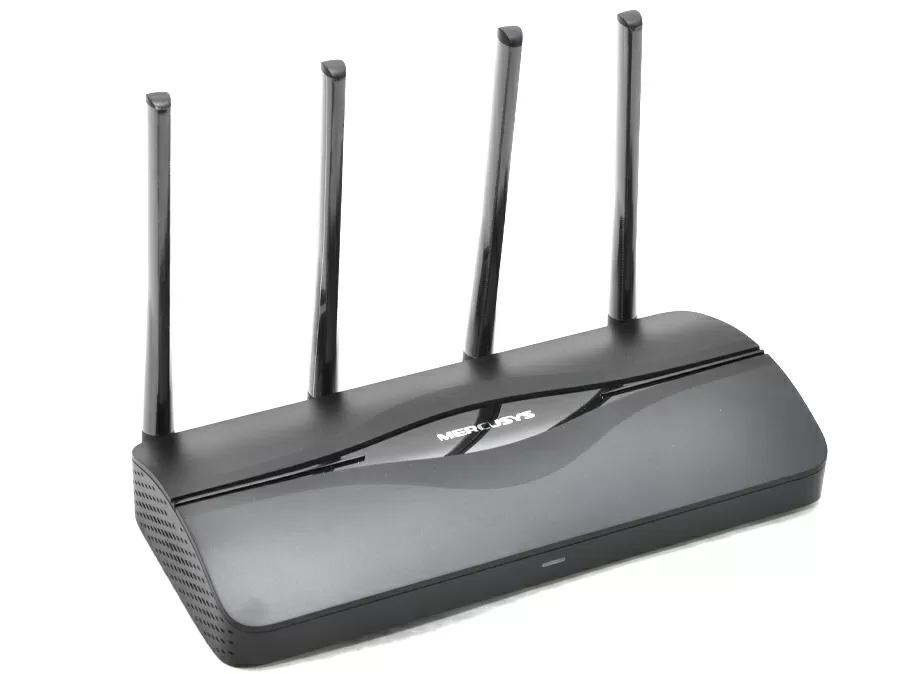
Mercusys MR27BE V2 Router with 2.5G WAN/LAN and Wi-Fi 7
Home networks have long ceased to be just "Wi—Fi for the phone" - video conferencing, online games, 4K/8K streaming and traffic from dozens of "smart" devices go through the router at the same time. To prevent all this from turning into a lottery of "lucky or not today," it makes sense to look towards Wi‑Fi 7 and multi-gigabit connections, even if the provider's tariff is still more modest.
The Mercusys MR27BE v2 is a dual—band router with Class 7 Wi-Fi support, designed for just such a scenario. It combines modern wireless functionality (160 MHz channels, 4K‑QAM, Multi‑Link Operation) and a normal wired part with two 2.5‑Gigabit ports so that the wireless network does not run into a gigabit "bottleneck" over a copper pair. We add compatibility with EasyMesh here to build a seamless Mesh network throughout an apartment or house, and it turns out to be quite an interesting base for modern home infrastructure without having to build a zoo of repeaters and "second routers".
In this review, we will analyze exactly what Wi‑Fi 7 gives in real‑world scenarios, how the MR27BE uses Multi‑Link Operation and wide channels, how justified a bundle of two 2.5G ports in a home network is, and how EasyMesh helps close "dead zones" without shamanism with manual settings.
Wi-Fi 7 in MR27BE: what is implemented and how it works
The MR27BE supports 802.11be/ax/ac/a/b/g/n wireless networks, which means it supports the entire current stack, including Wi-Fi 7. Older clients can connect without any issues, and new clients can enjoy the full range of 802.11be capabilities. Let's break it down point by point.
The declared peak speed of the 5 GHz band is 2880 Mbps. This is a result of a combination of three factors: a 160 MHz channel width, 4K-QAM modulation, and MIMO spatial streams.
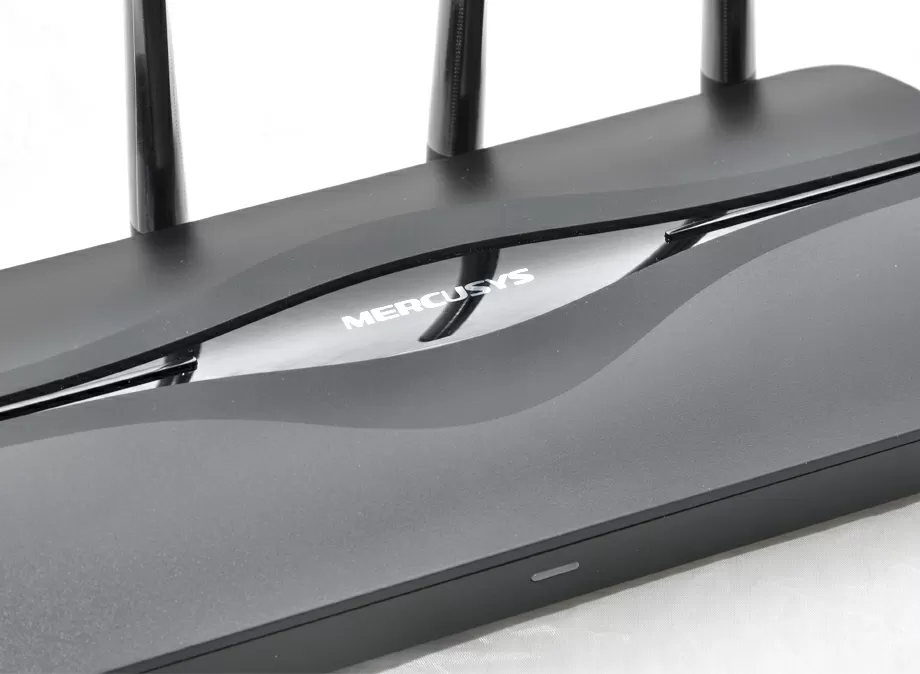
For context, most Wi-Fi 6 routers in real-world configurations use 80 MHz channels, as 160 MHz on 5 GHz is an option that occupies the entire available band. In dense urban environments with neighboring access points, this increases the risk of interference, and only in private homes or offices with controlled radio environments can the full potential of channel width be realized.
In the 2.4 GHz band, the ceiling is 688 Mbps: the band is narrow, historically congested, but provides better penetration through floors and walls and is used by IoT devices that prioritize range and connection stability over speed.
By the way, the antennas on the MR27BE are non-removable, so keep that in mind if you're planning any complex Wi-Fi configurations.
2.5G ports: why and for whom
MR27BE port configuration:
- 1 WAN 2.5 Gbps - for connecting to a provider
- 1 LAN 2.5 Gbps - for wired clients or an uplink in Mesh
- 2 LAN 1 Gbps - standard gigabit ports
For a long time, the wired interface was the bottleneck of the home router: the wireless part was theoretically capable of delivering several gigabits, but it was limited by the gigabit WAN port. With the widespread availability of 1 Gbps and higher data rates from providers, this ceiling became a real limitation. The 2.5 Gbps WAN port eliminates this limitation.
WAN 2.5G is an obvious benefit for those who have a provider offering data rates above 1 Gbps. While these offers are rare, they do exist, and a gigabit WAN simply cuts off the paid bandwidth in such situations.
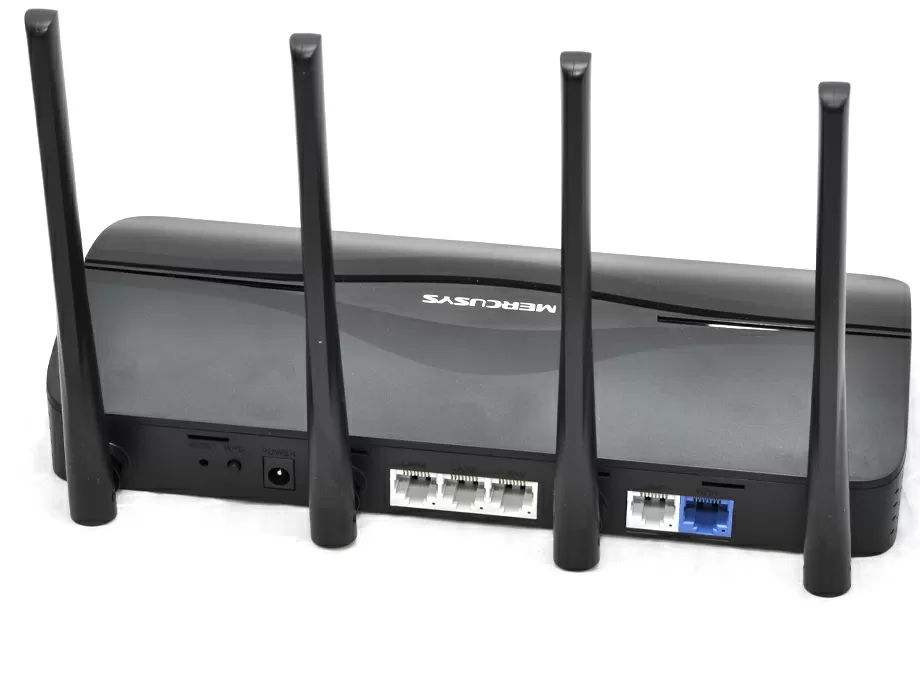
LAN 2.5G - there are several scenarios:
- Connecting a NAS with a 2.5G network interface. If there is a corresponding controller on the storage (for example, based on RTL8125 or I225), file transfer within the network stops running into gigabits — this is important when working with large amounts of data, backups or torrent downloads (and why else do you need 2.5 Gbit/s).
- Downstream to a 2.5G switch. If there are more than three wired clients on the network, one 2.5G uplink from the router to the switch removes a potential bottleneck between network segments.
- In the EasyMesh configuration, there is a 2.5G wired backdoor between Mesh nodes instead of Gigabit, which directly affects the actual bandwidth between network points.
- The two remaining gigabit LAN ports cover the connection of devices for which Gigabit is more than enough: Set-top boxes, stationary PCs without a multi-gigabit network card, IP cameras.
It is worth noting that the 2.5GBASE-T (IEEE 802.3bz) physical standard is compatible with existing Cat5e twisted pair and higher — no replacement of the cable infrastructure is required to switch to 2.5G.
The official documentation and specifications of the Mercusys MR27BE do not describe the possibility of switching the WAN 2.5G port to LAN mode, so if you need to connect a workstation and a NAS on 2.5G, then choose another solution.
EasyMesh: Seamless Coverage Without a Repeater Zoo
The MR27BE supports the EasyMesh standard, an inter-vendor Mesh network protocol based on IEEE 1905.1. This means that the router can be combined with other EasyMesh-enabled Mercusys and TP-Link devices into a single managed network, without being tied to a specific model.
How it works in contrast to repeaters
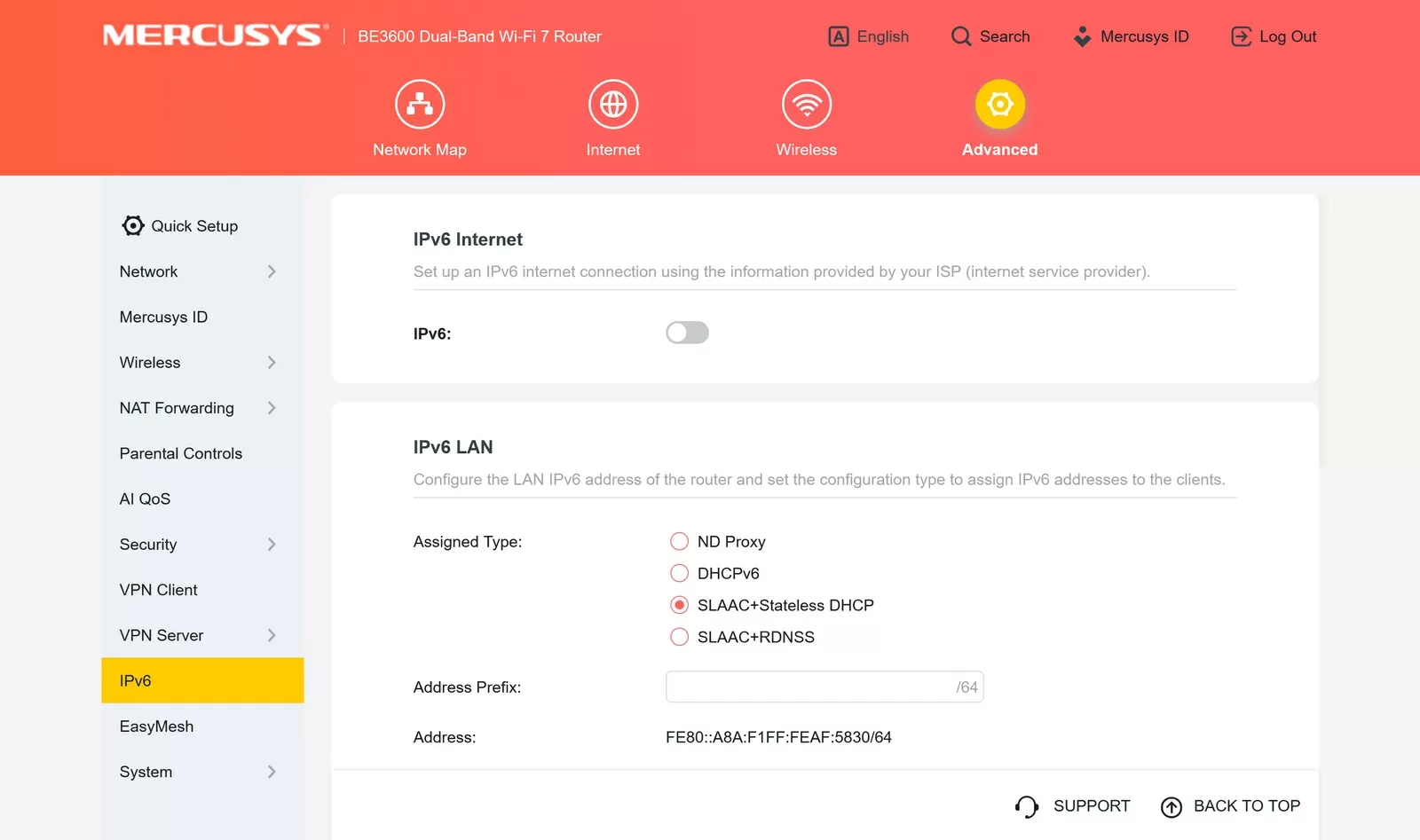
A classic repeater (range extender) creates a separate SSID, works in half-duplex and switching between it and the main router is at the discretion of the client device — it is not uncommon for the client to "cling" to a weak point and not switch to the nearest strong one. In EasyMesh, the entire network is managed centrally through the main router: a single network name, a single password, roaming between nodes is coordinated at the network level itself through 802.11k (scanning of neighboring points) and 802.11v (recommending a client to switch to a better point). When a client moves, it receives a recommendation to switch to the nearest node without breaking the connection.
Беспроводной и проводной бэкхол
EasyMesh supports two types of backhaul, which is the communication channel between Mesh nodes:
Wireless backhaul - nodes communicate with each other via Wi-Fi. Easy deployment, but part of the radio resource is spent on inter-node traffic, rather than on clients. For a dual-band router, this means that backhaul and client traffic share the same airwaves.
Wired (Ethernet) backhaul - nodes are connected by a cable. In this case, the entire wireless resource is fully allocated to clients, the delay between nodes is minimal, and the backhaul bandwidth is independent of the radio environment. If you have a cable infrastructure in your home, this is the preferred option. Configuration: LAN port of the main router → LAN port of the satellite node, after which the wireless backhaul is automatically disabled.
Here, by the way, the LAN 2.5G port of the MR27BE becomes relevant again: if the router acts as the main Mesh node, the wired backhaul to the satellite will go through it — and there will be no 1 Gbps bottleneck.
Limitations to be aware of
EasyMesh Ethernet Backhaul requires support from both sides — both the main router and the satellite device, often through firmware updates. On related devices in the line (for example, MR47BE), support for wired backhaul appeared only in beta firmware — a similar situation is possible for the MR27BE, depending on the firmware version. Before building a Mesh with wired backhaul, it makes sense to make sure that the firmware of all nodes is up to date.
Another point: Mercusys EasyMesh networks and Mercusys Halo Mesh networks are different ecosystems and are not compatible with each other. If you already have Halo devices on your network, you will not be able to add the MR27BE via EasyMesh.
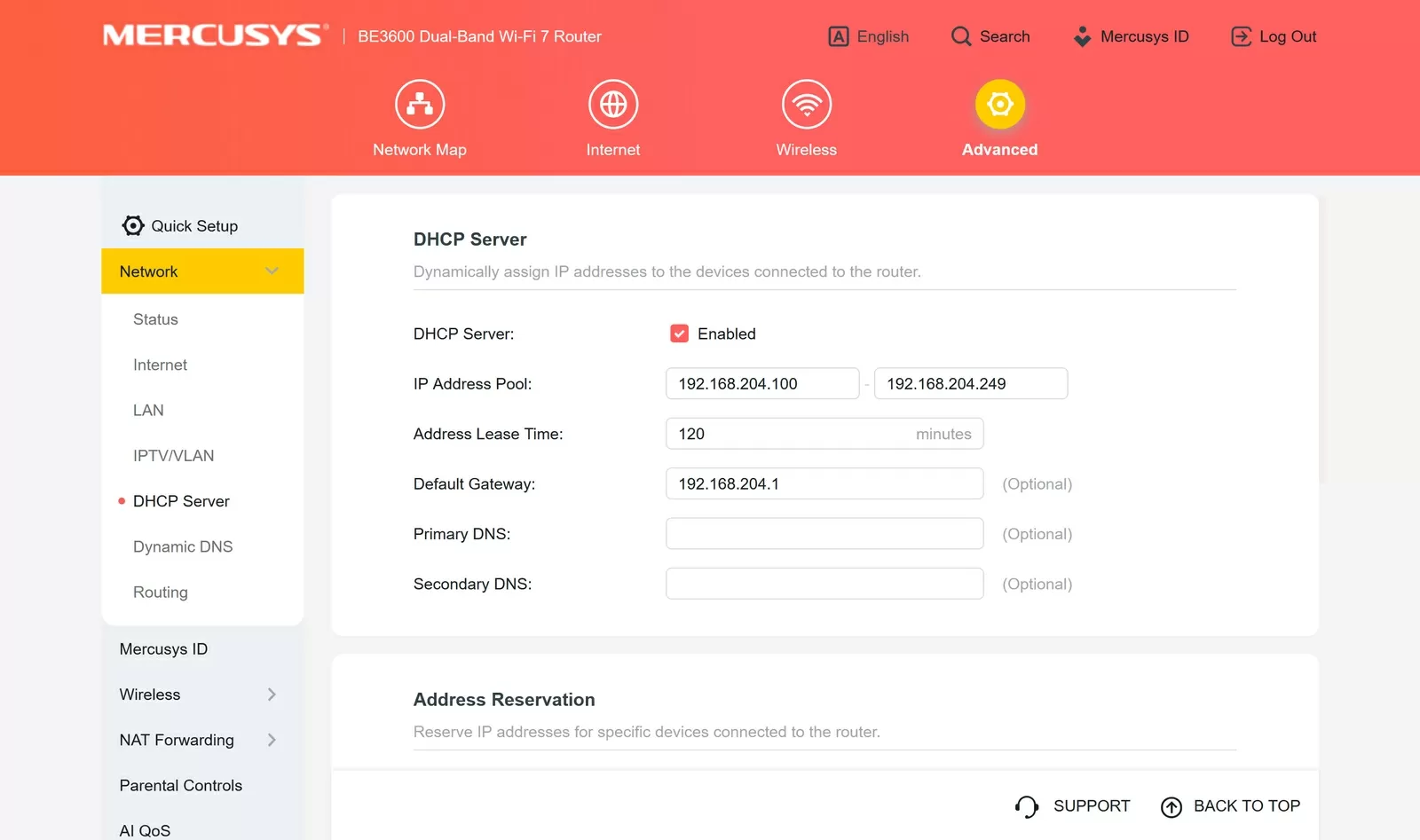
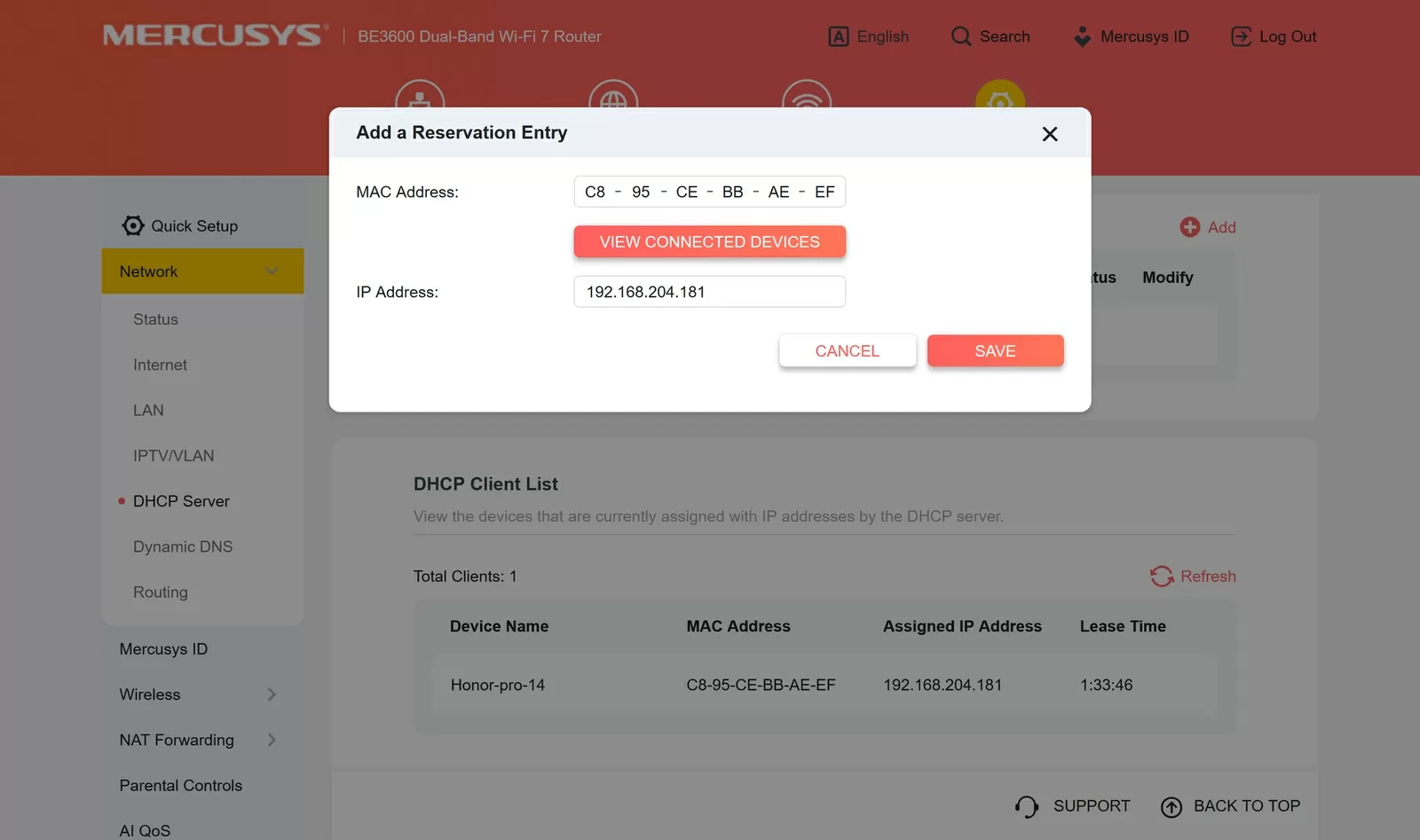
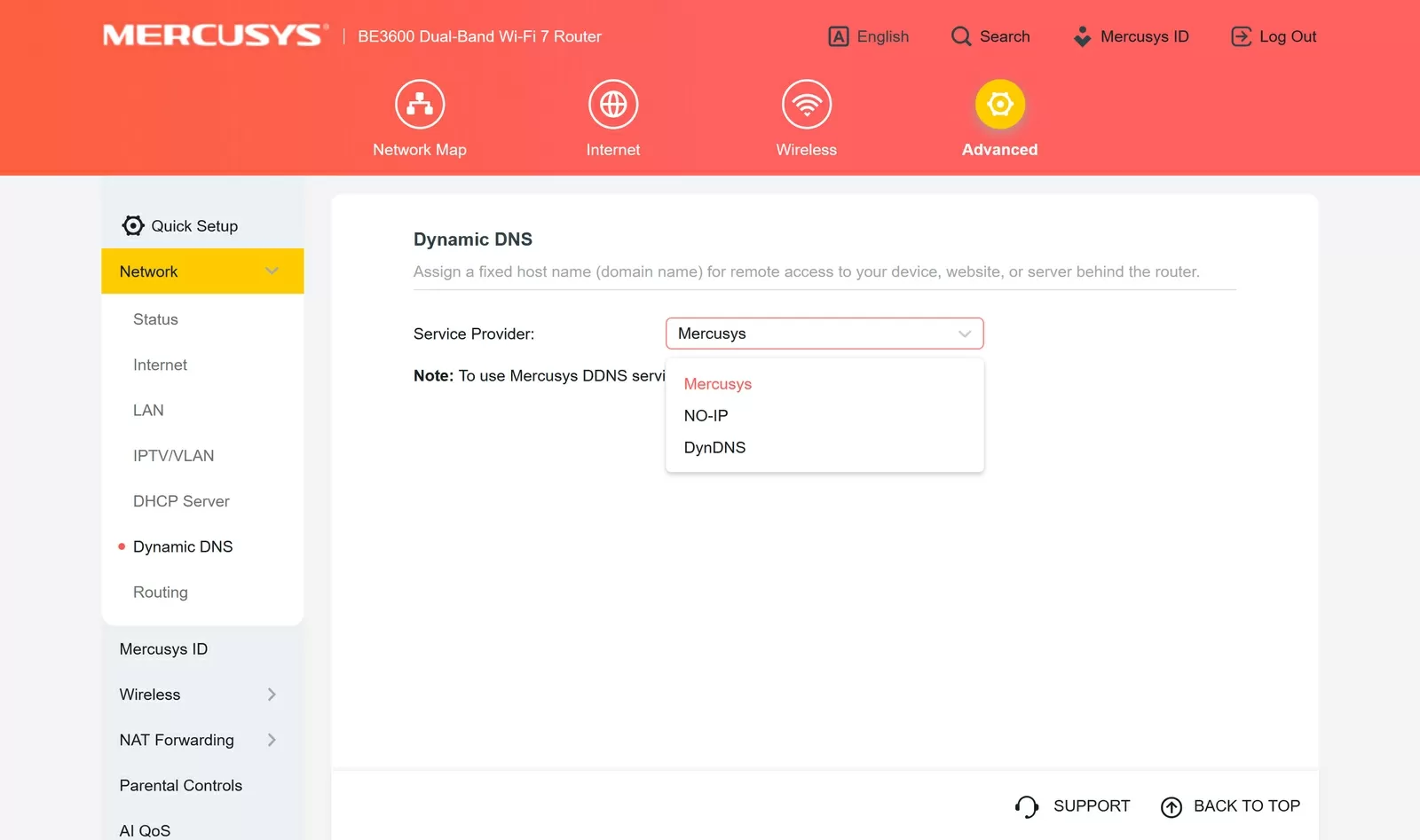
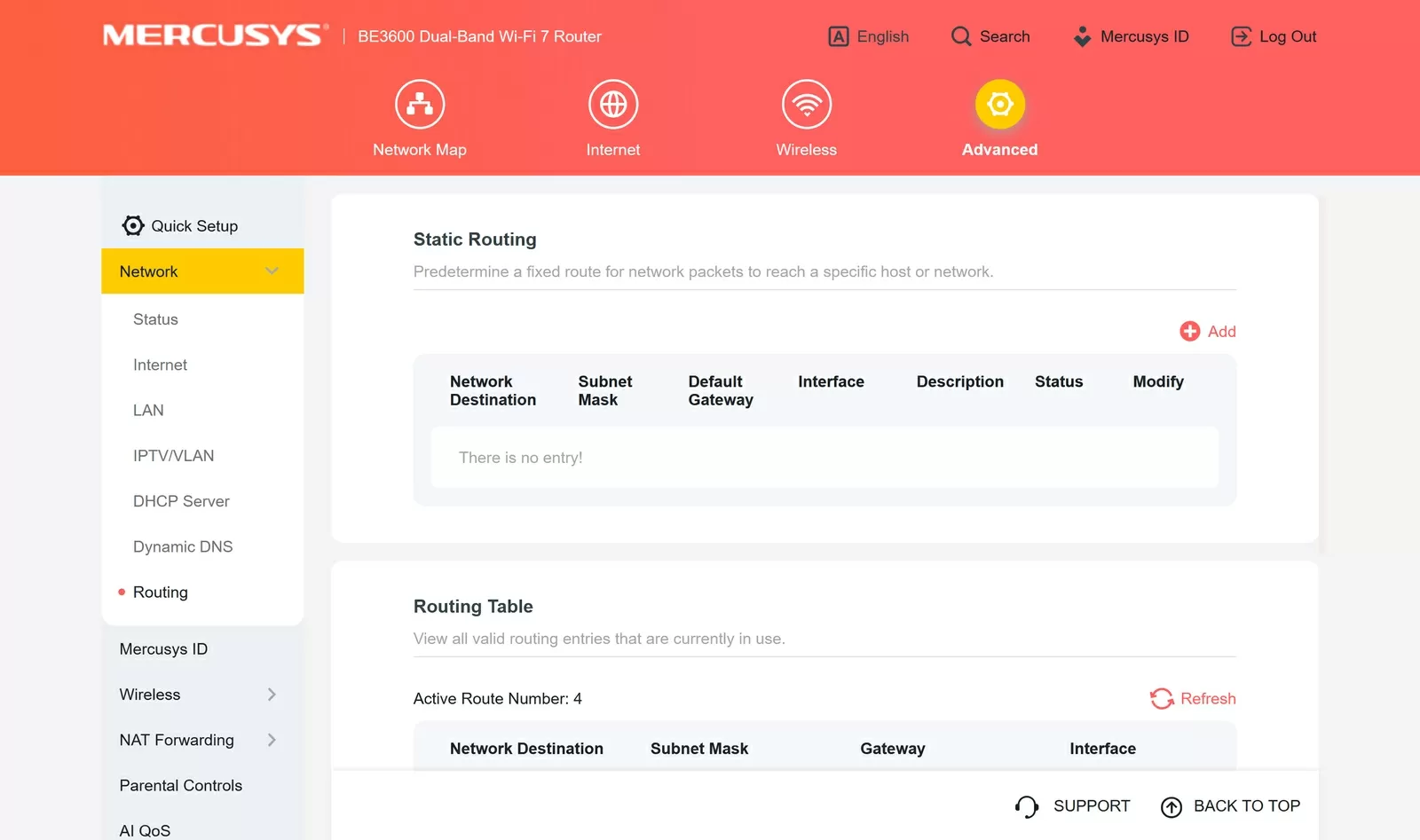
Web interface: settings to pay attention to:
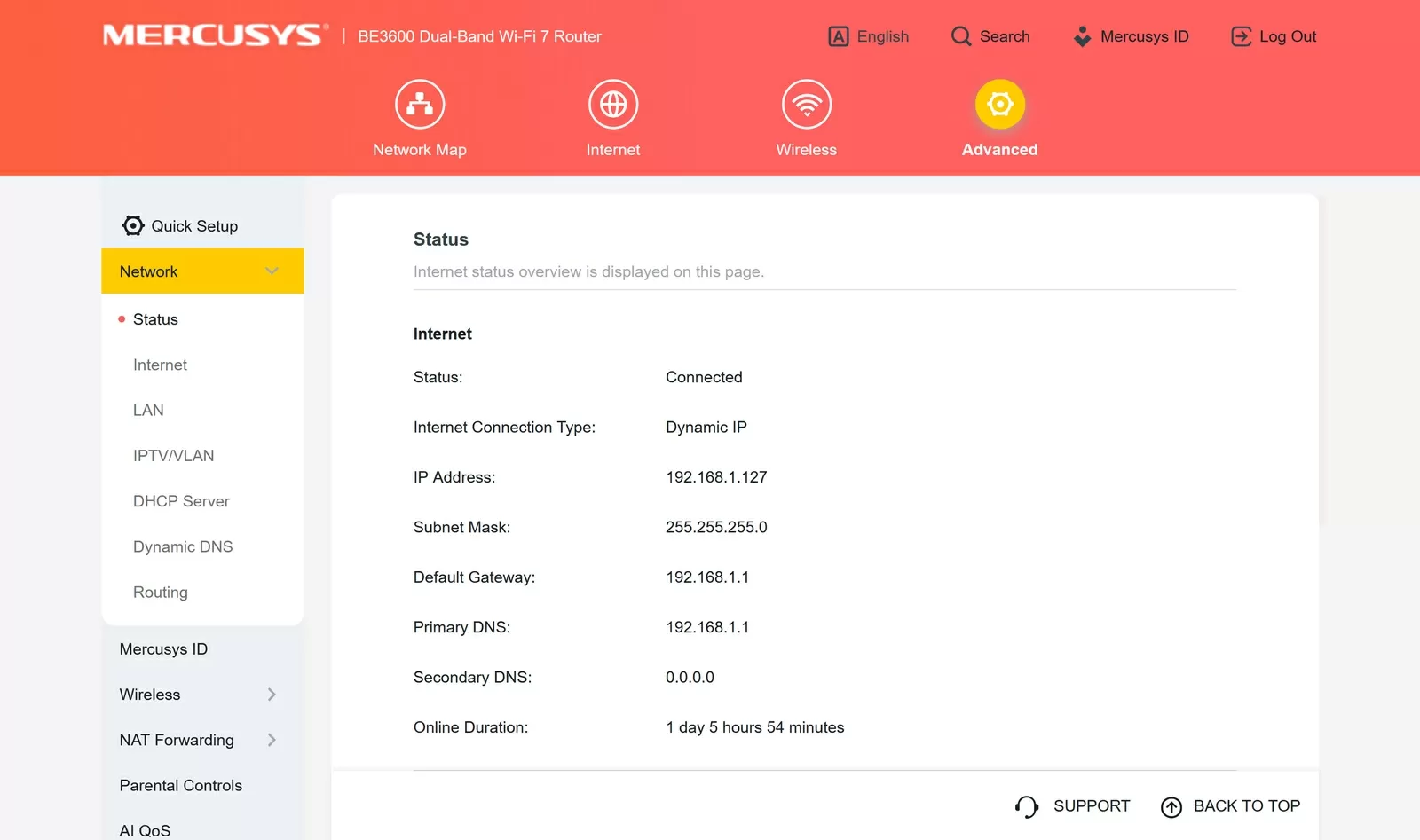
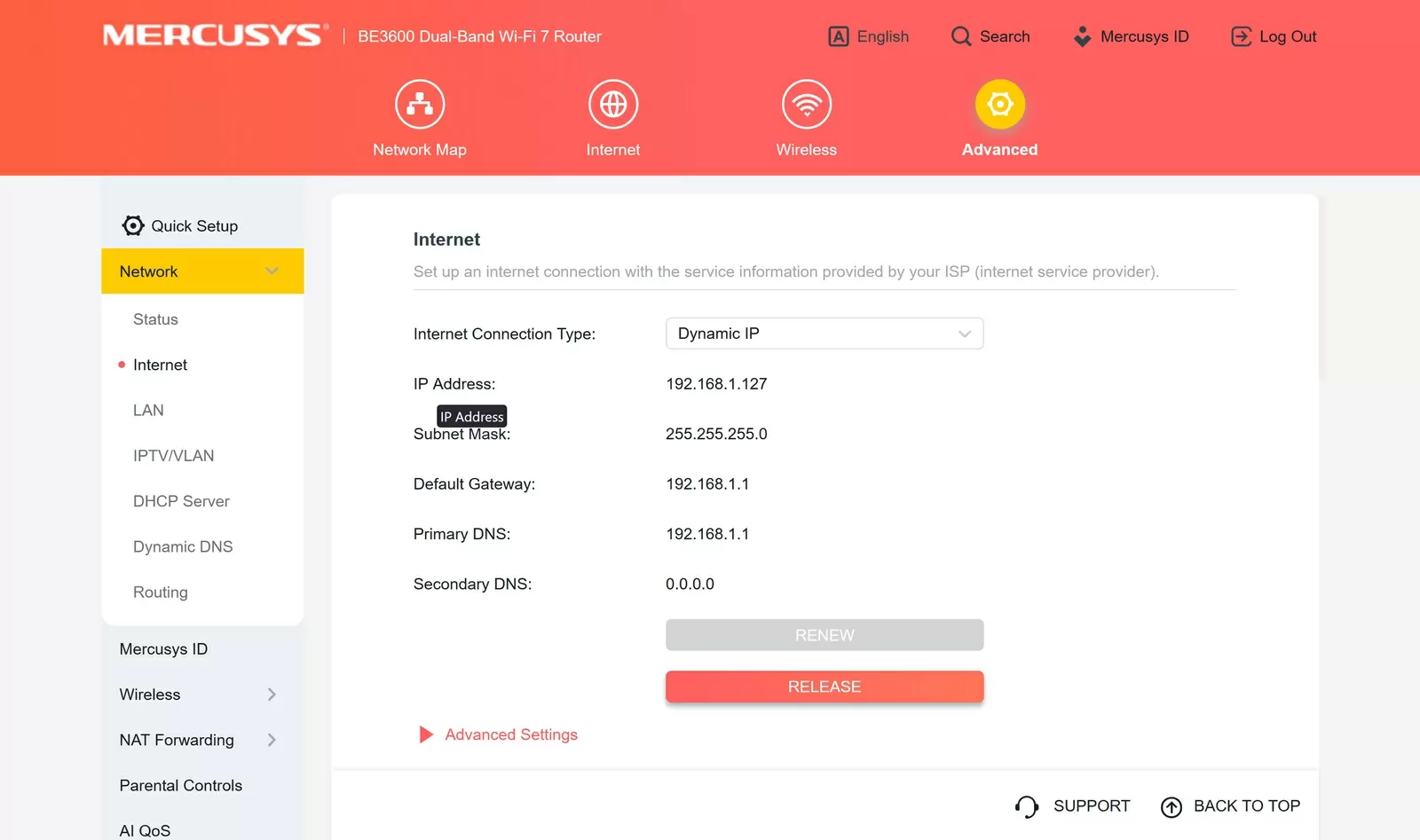
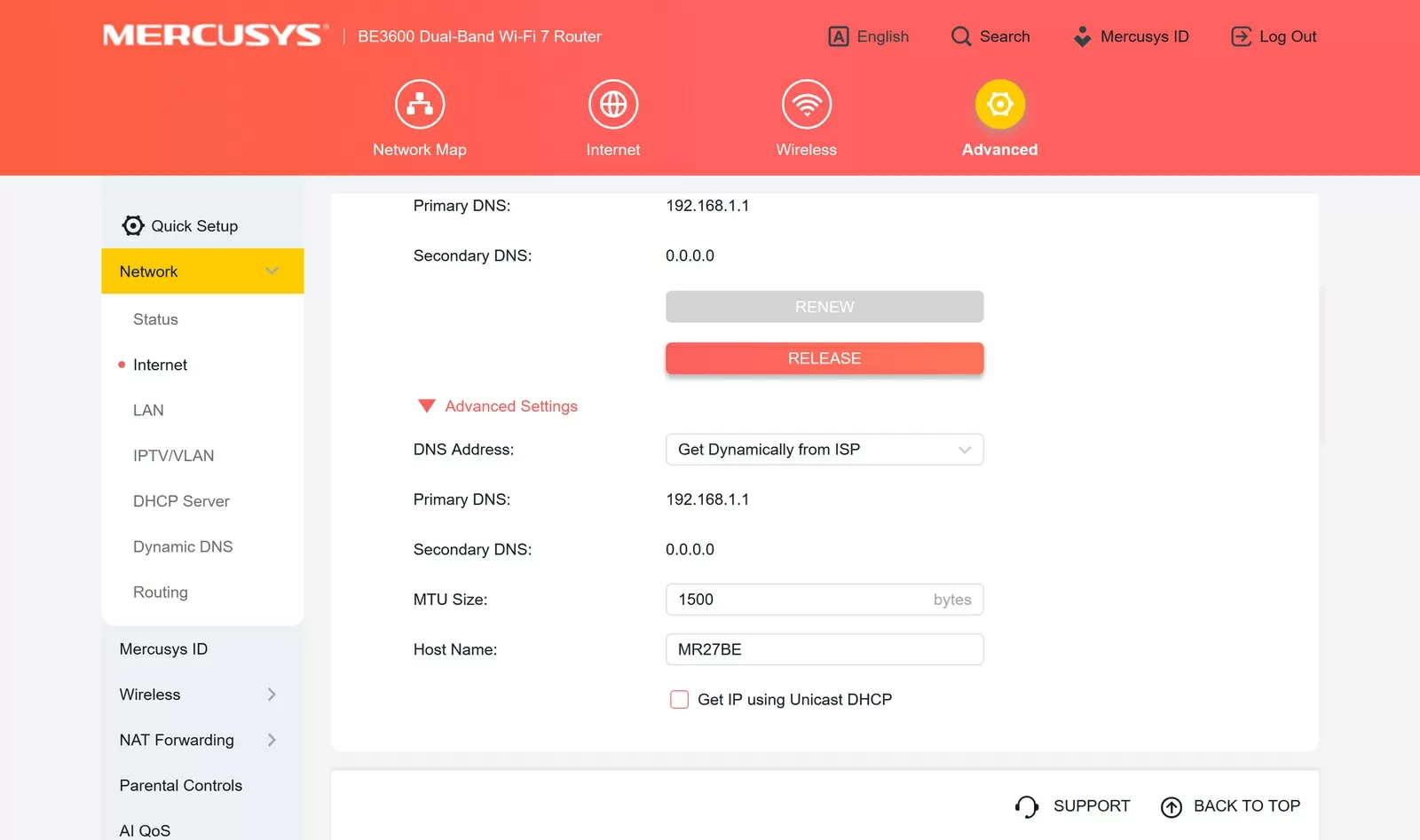
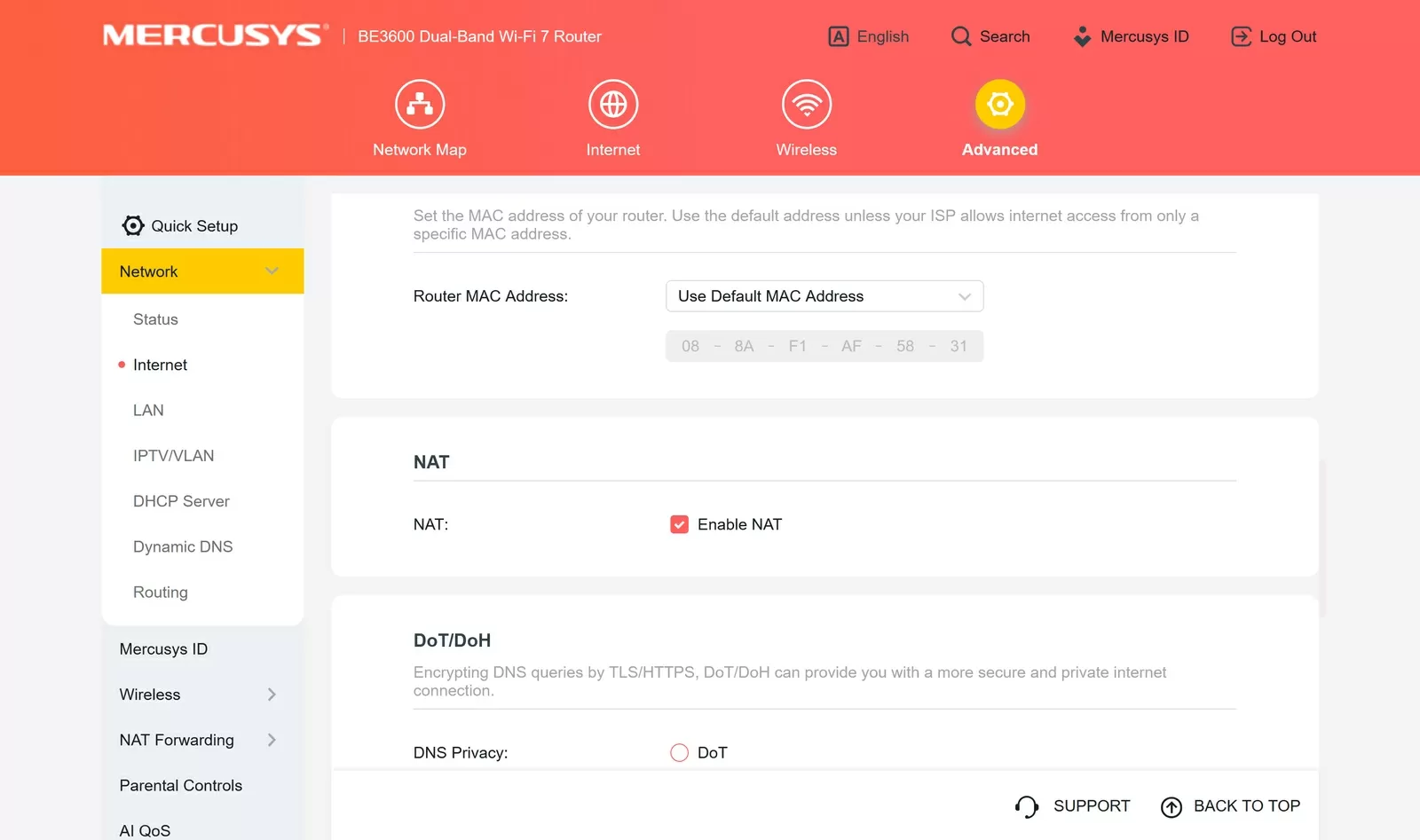
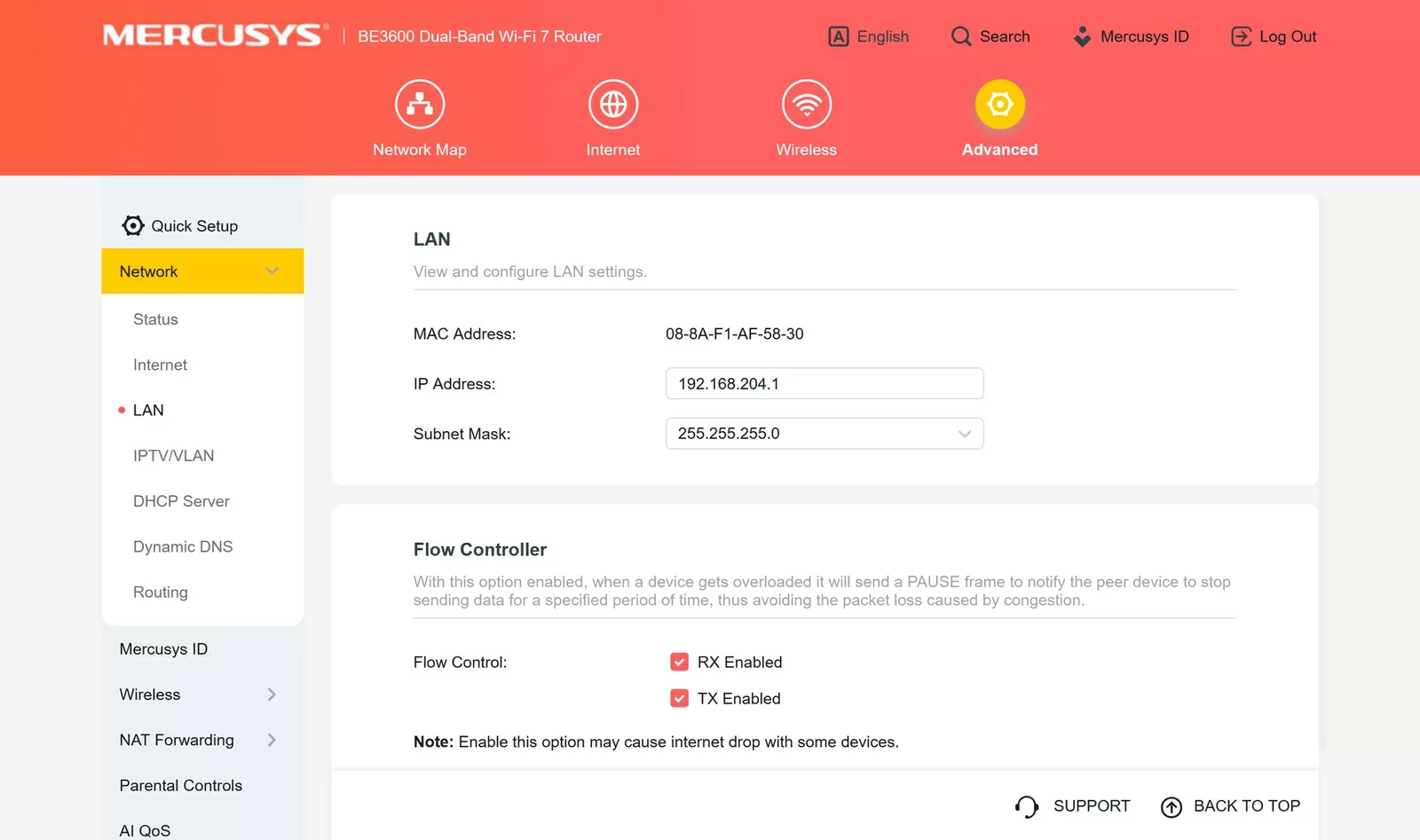
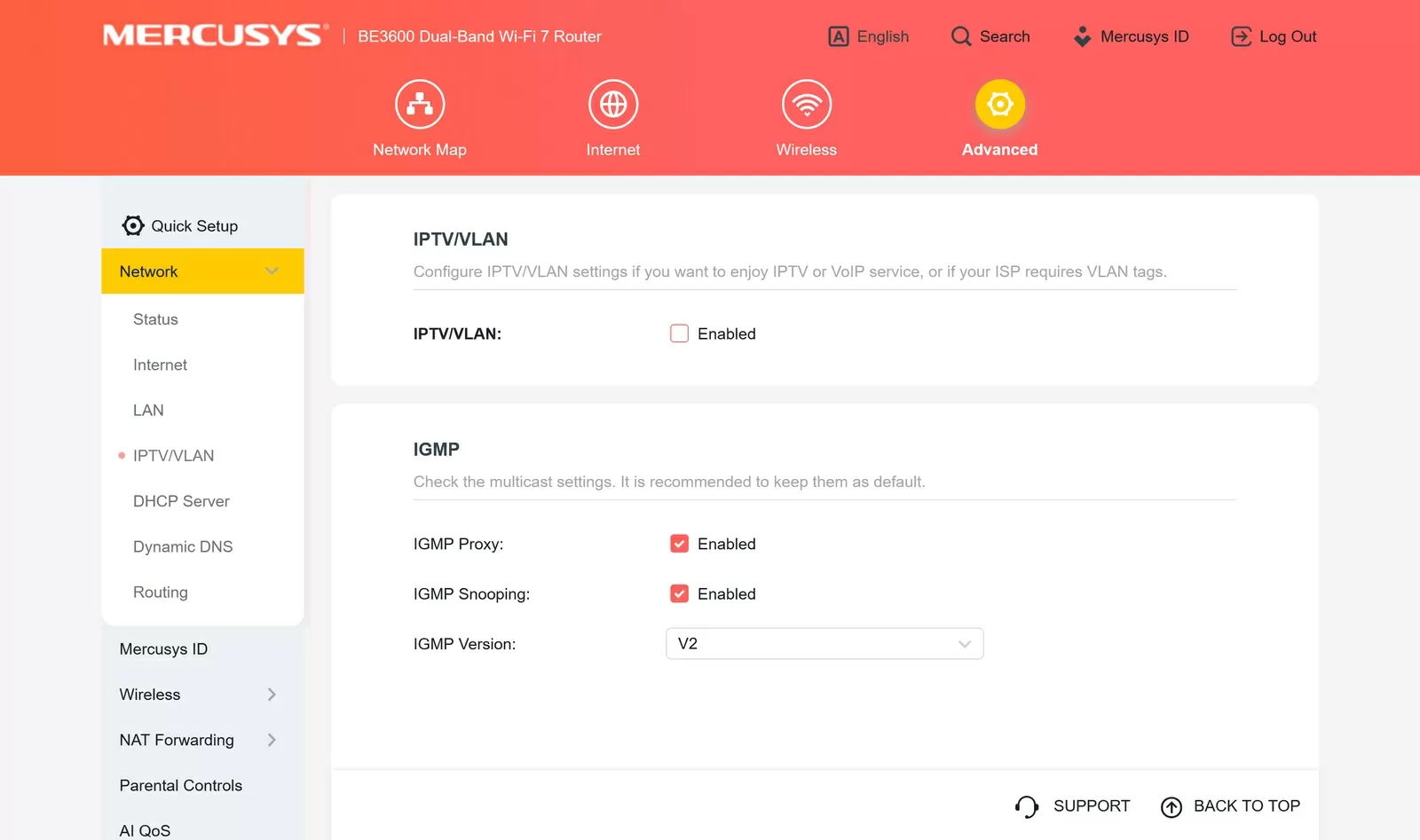
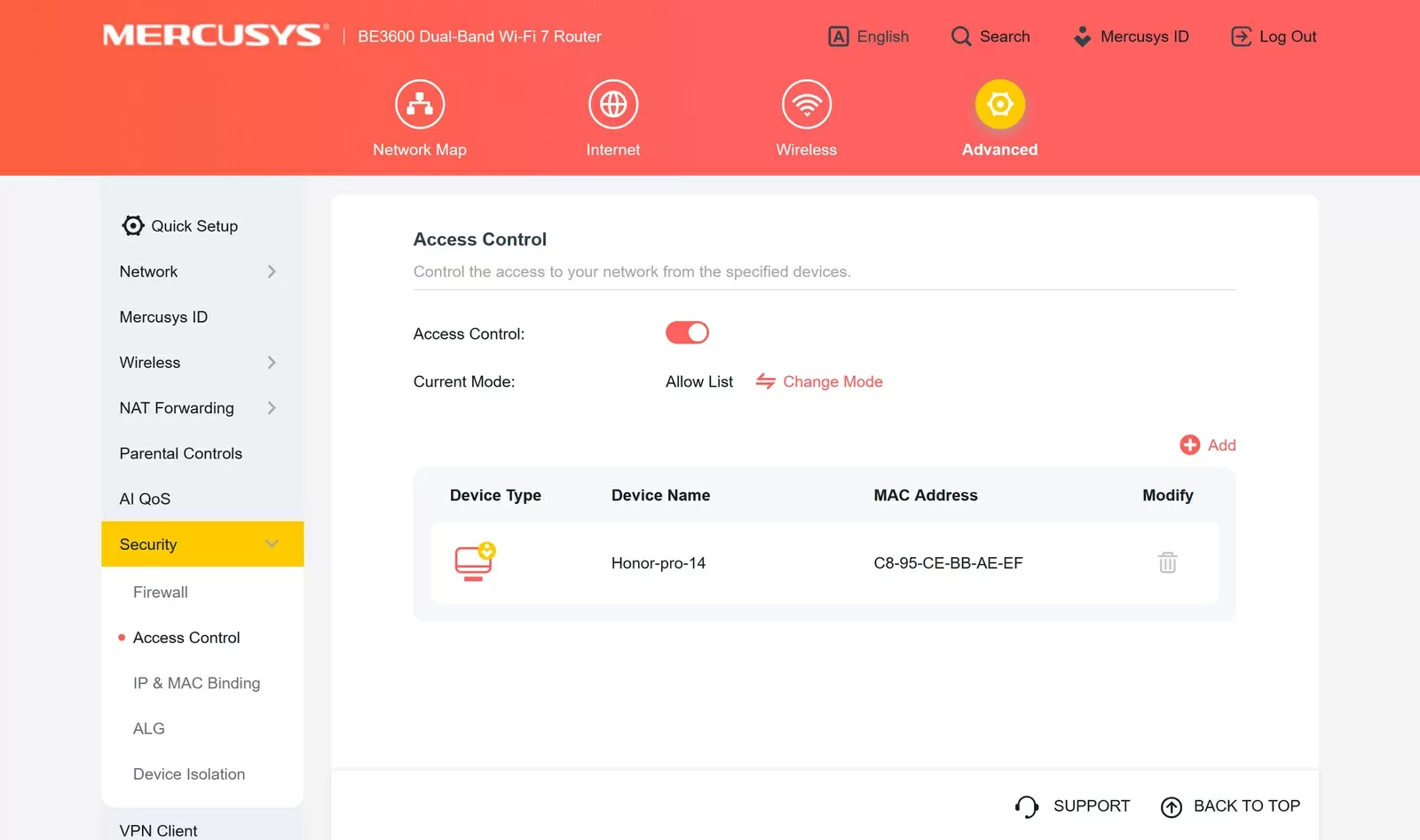
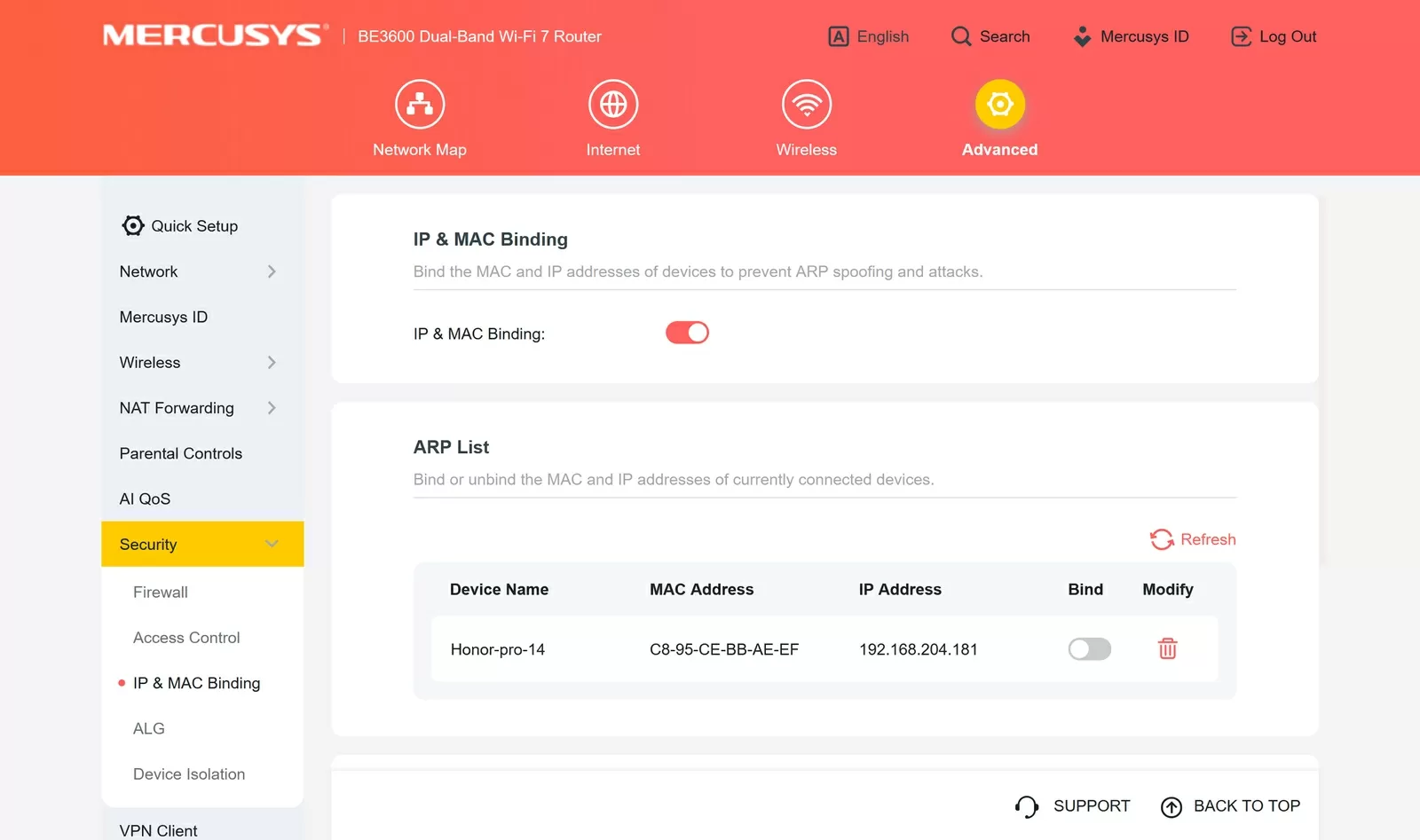
The interface is divided into four main sections: Network Diagram, Internet, Wireless Network, and Advanced. The first three sections provide simplified access to basic settings, while the Advanced section offers a comprehensive tree of settings.
MLO Network
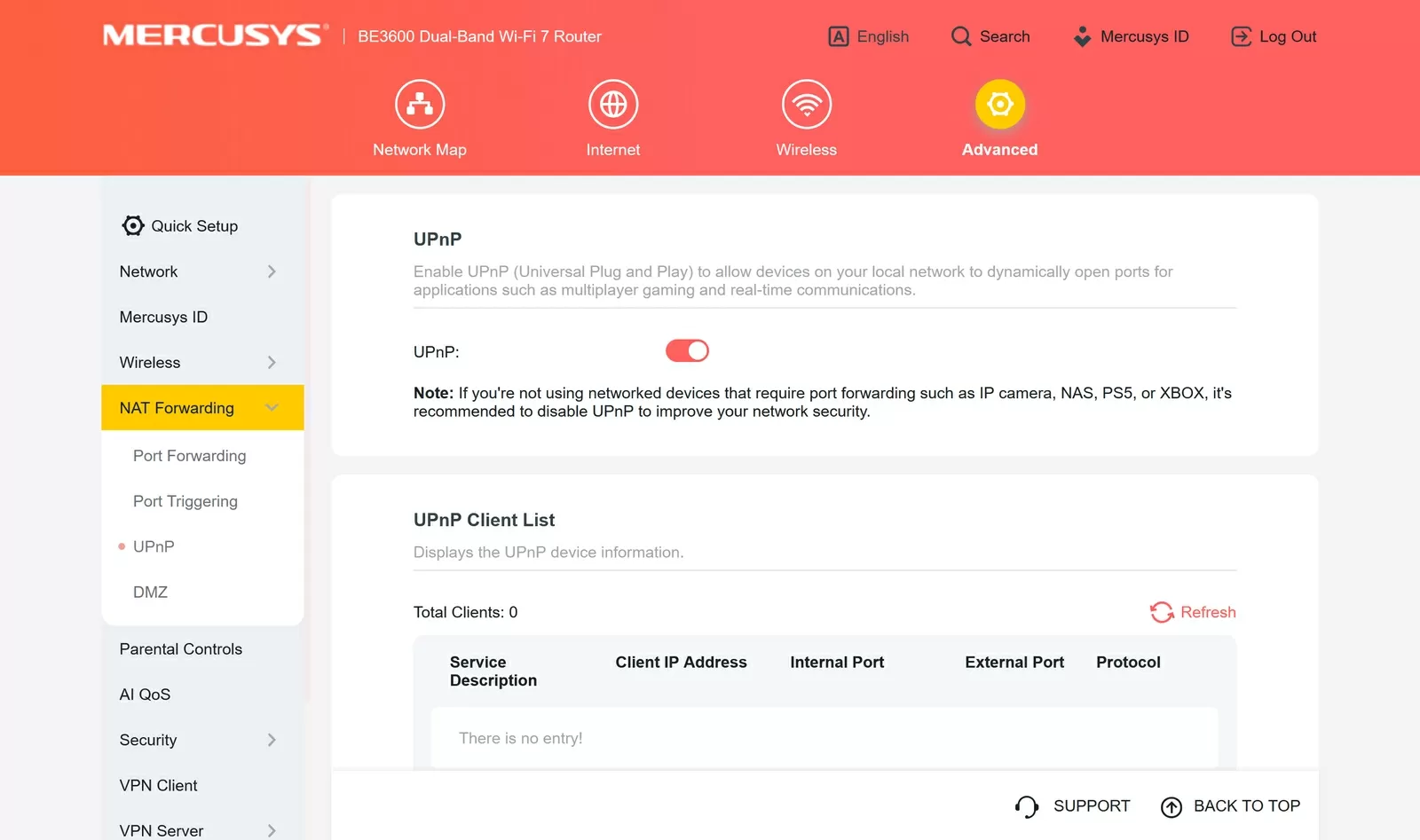
The MLO network is configured with a separate switch in the Wireless section and creates its own SSID with the suffix _MLO. This is not just an alternative network name - a client that connects to this SSID receives full-fledged multi-band aggregation: the router simultaneously uses 2.4 and 5 GHz within a single connection. Devices without Wi-Fi 7 support will not be able to connect to the MLO network, so the main SSID remains for the rest of the client zoo.
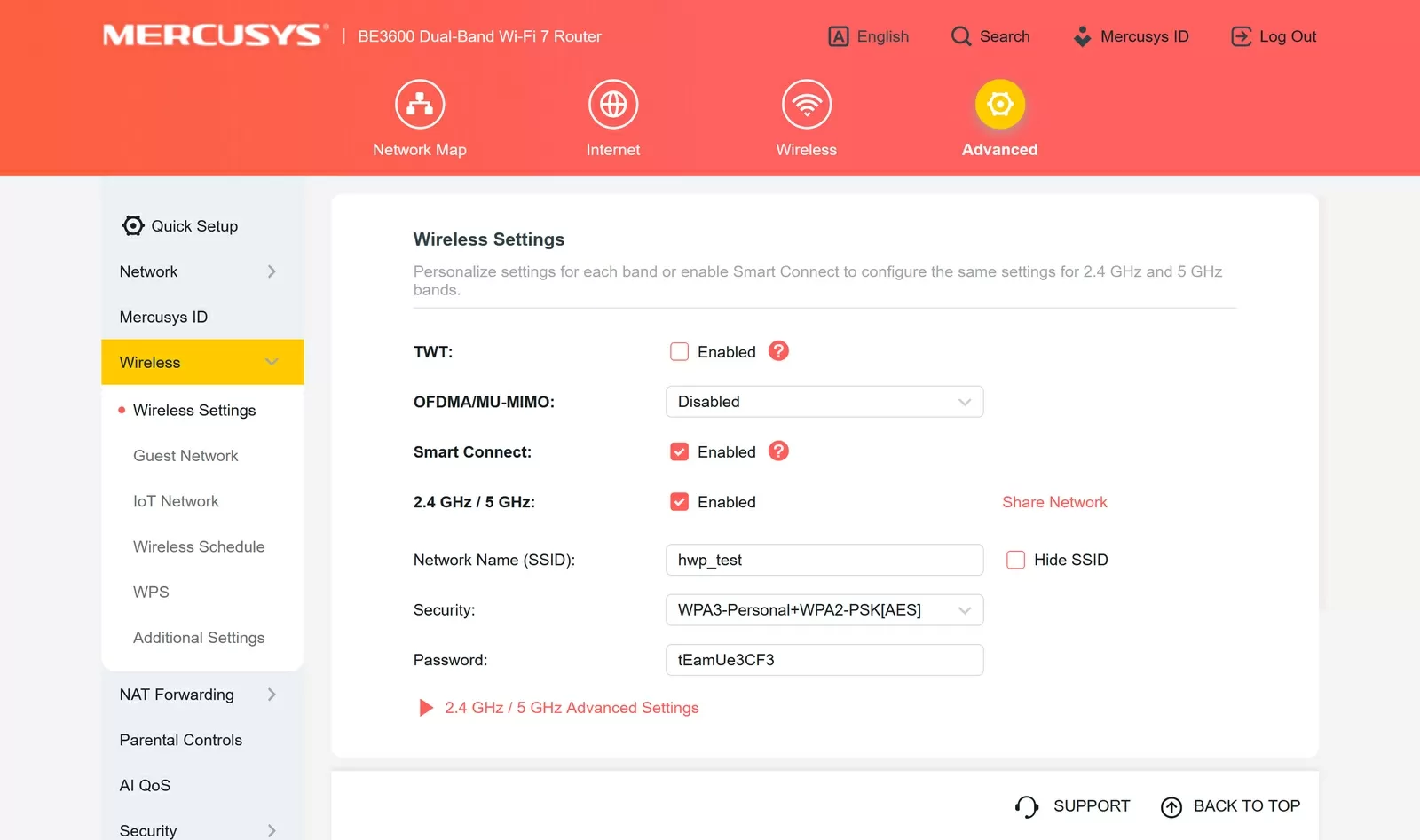
Smart Connect
When Smart Connect is enabled, both bands are combined under a single SSID, and the router decides which band to use based on the client's location. This is convenient because it eliminates the need to manually switch between 2G and 5G networks when moving around the house. However, the band selection algorithm is not transparent, and in some scenarios (such as when the device is located near the edge of the 5GHz band), the router may not switch the client to the optimal band. For fine-tuning or debugging purposes, it is recommended to disable Smart Connect and manage the bands manually.
TWT (Target Wake Time)
TWT is a mechanism from the 802.11ax/be standard that allows the access point and the client to agree on a data exchange schedule in advance. The device does not keep the radio module active all the time, but only wakes up at the agreed intervals, which significantly reduces power consumption. This is especially important for IoT devices and smartphones, which are commonly used in modern home networks. By default, TWT is disabled, but it makes sense to enable it if there are battery-powered devices with Wi-Fi 6/7 support in the network.
Zero Wait DFS
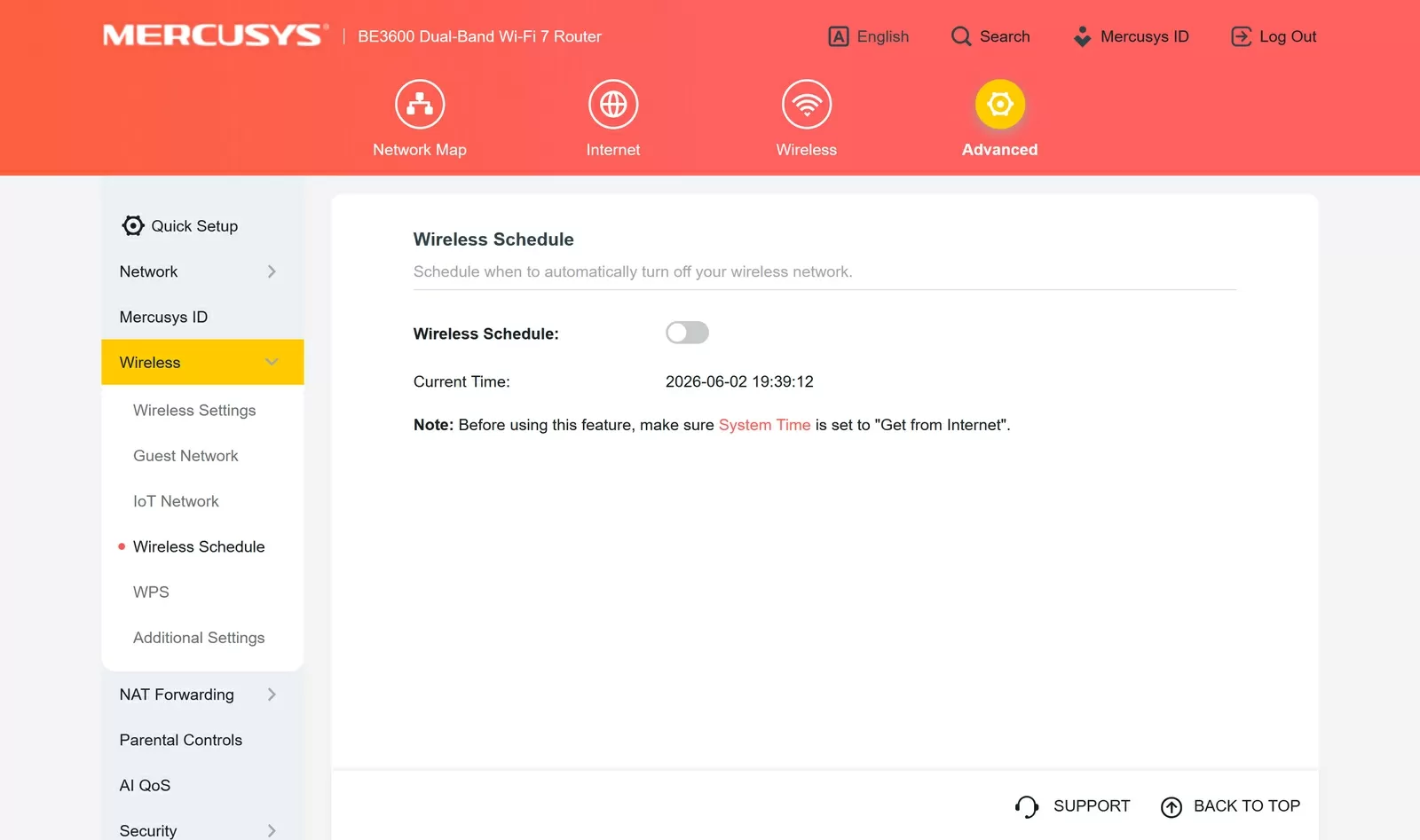
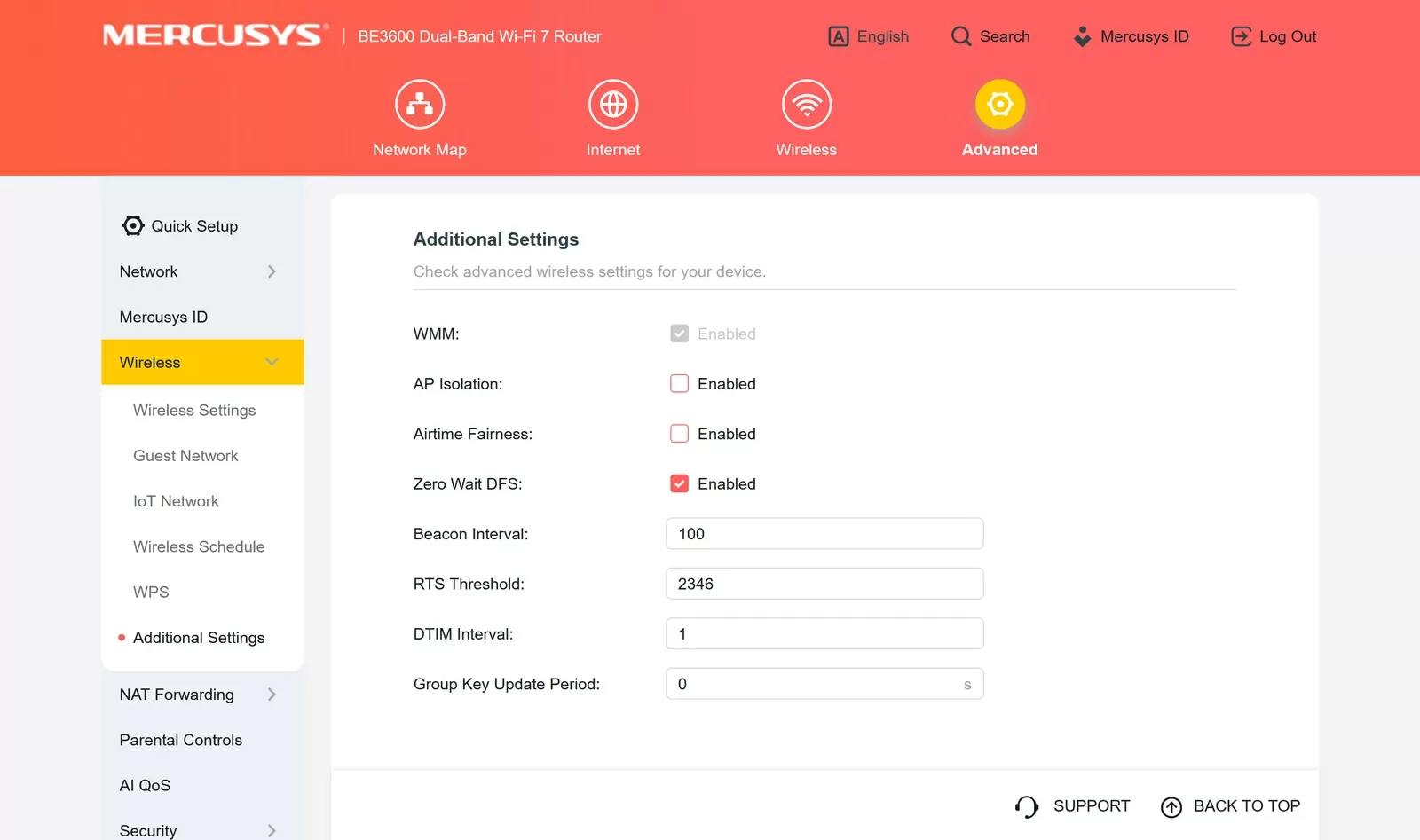
When using a 160 MHz channel on 5 GHz, the router inevitably affects the DFS channels (Dynamic Frequency Selection) reserved for weather radars. The standard scenario without Zero Wait DFS is as follows: the router detects a radar signal and switches to another channel, causing all clients to reconnect with a pause. Zero Wait DFS solves this problem preemptively: while the router is operating on the main channel, it simultaneously scans the backup DFS channels in the background. If necessary, the switchover occurs instantly without disrupting connections. On the MR27BE, this feature is enabled by default, which is a reasonable solution for 160 MHz channels.
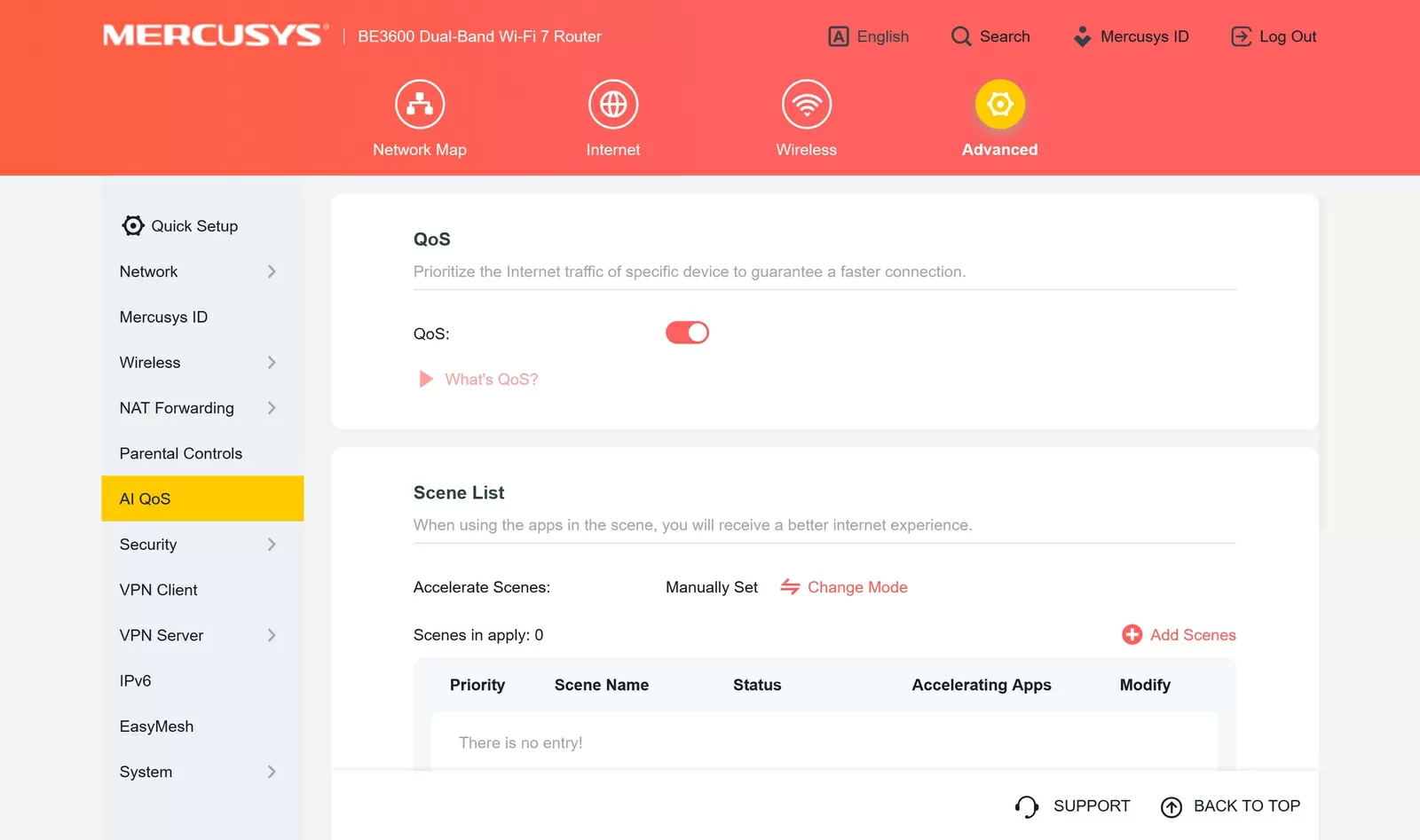
AI QoS
Mercusys' AI QoS is a "smart QoS" that understands which traffic is more important and redistributes Wi-Fi resources without manual configuration.
AI QoS is based on a combination of DPI (Deep Packet Inspection) and proprietary traffic scheduling algorithms. The router analyzes the types of connections and decides in real-time which traffic to prioritize, whether it's a game, video call, stream, or regular file downloads. This allows for a more "even" channel for activities that are sensitive to latency and packet loss, while background activities are prioritized. The mechanism continuously learns from real-world traffic, improving its recognition of scenarios and prioritization schemes as the network is used, ensuring that the behavior becomes more aligned with your typical internet usage over time.
For the user, it looks as simple as possible: AI QoS is enabled with a single toggle switch in the Mercusys app or web interface, without the need to manually configure rules, ports, or service classes. The manufacturer's internal tests show a significant reduction in latency and packet loss, as well as a decrease in data download times, although the actual figures may vary depending on the specific provider, line quality, and client devices.
The advantages of AI QoS are most evident in everyday "combat" scenarios, where multiple consoles, Smart TVs, laptops with video conferencing, and phones with social media and streaming are all connected to the same network. In such situations, traditional QoS can quickly become a headache, as it requires manually creating profiles for games, video services, VoIP, and constantly updating them. AI QoS eliminates this hassle by automatically adapting to the current set of services and devices. As a result, players experience minimal lag, online meetings remain intact during parallel downloads, and 4K videos do not turn into a slideshow, even when someone on the network is actively downloading large files.
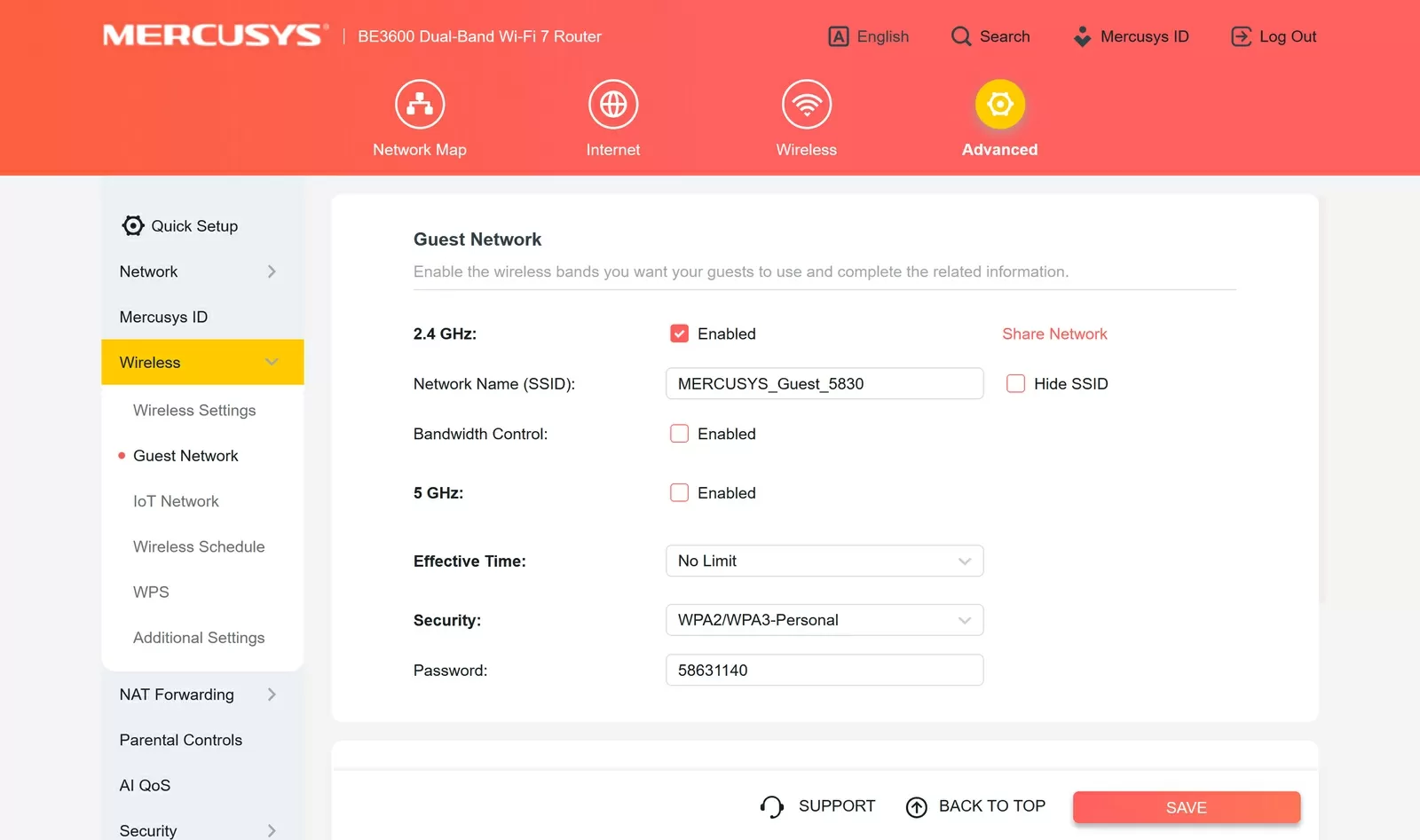
Guest network
The guest network is enabled separately for each band - 2.4 and 5 GHz. The key point here is not in the very fact of a separate SSID, but in the settings of the "Guest Permissions" section: two independent switches - "allow guests to see each other" and "allow guest users to access the local network". By default, both are off, and this is the correct state: the guest gets access to the Internet and nothing more - neither access to the NAS, nor visibility of other network clients. It is worth turning on these options only if there is a specific reason.
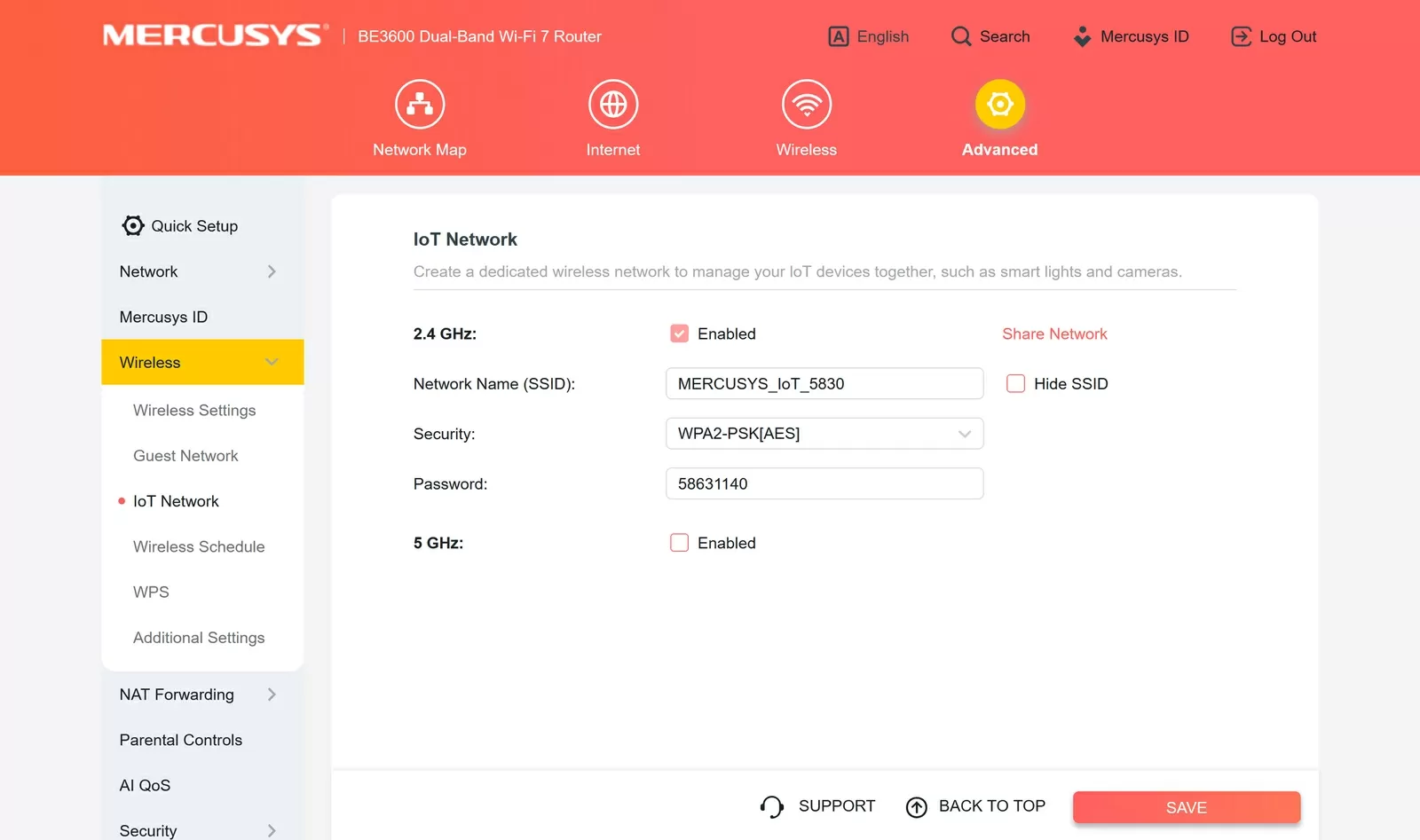
IoT network
A separate SSID for IoT devices is also available on both bands. The point of its existence is to physically separate smart light bulbs, cameras, thermostats and other peripherals from the main network with workstations and NAS. IoT devices are notorious for weak security policy: rare firmware updates, hard-coded credentials, open ports. Placing them in a separate segment means that compromising one device does not give an attacker direct access to the rest of the network.
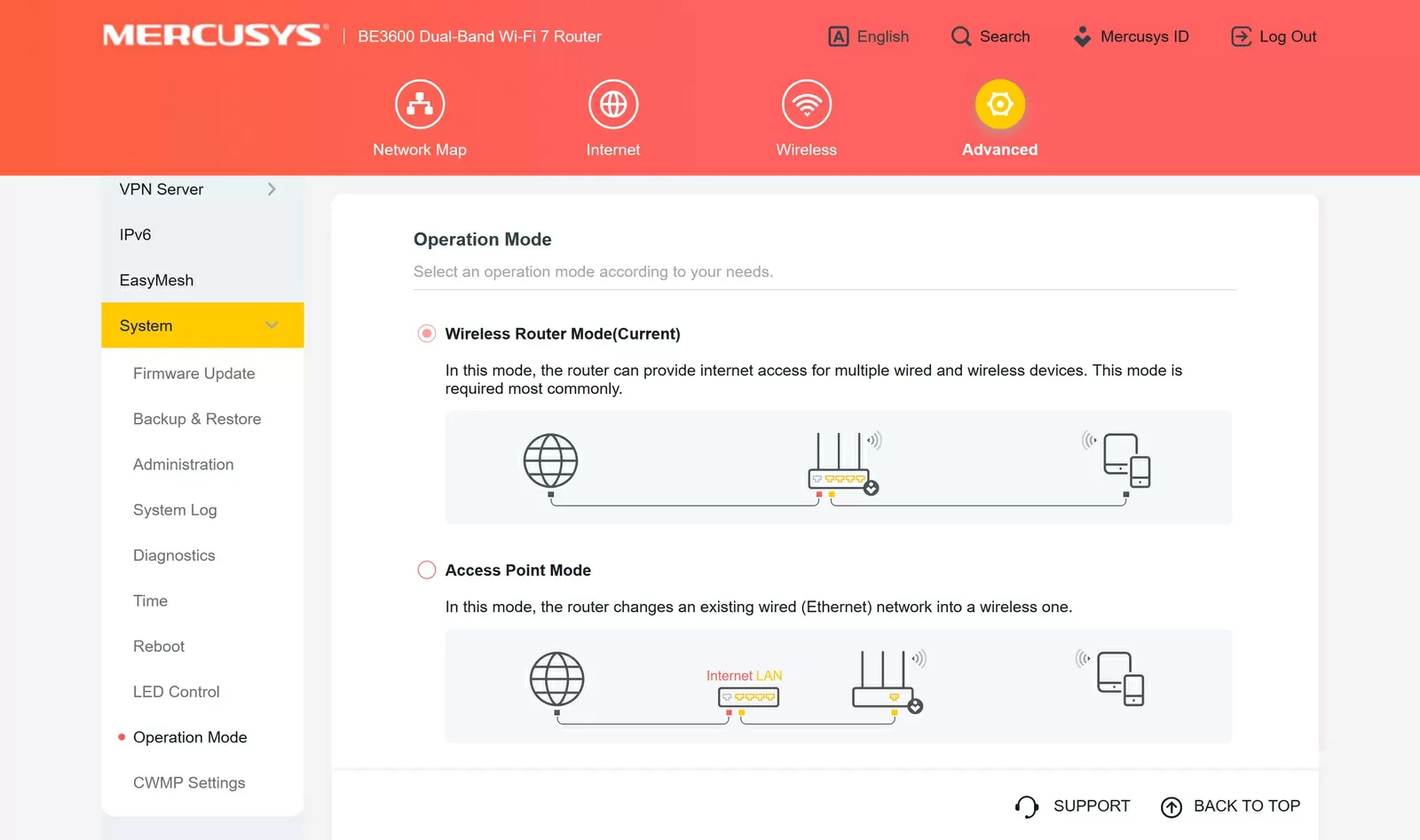
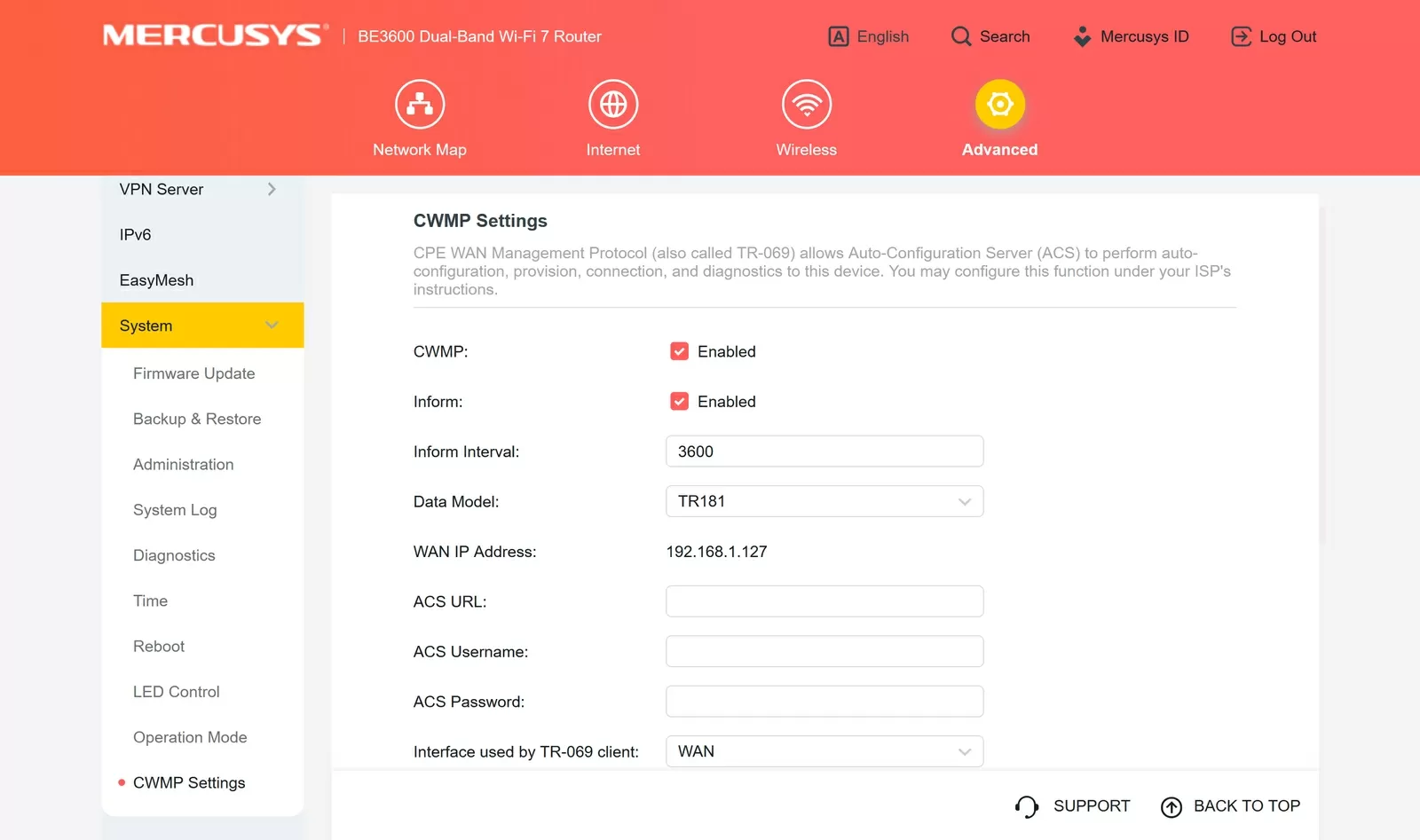
Device isolation: enable and don't think
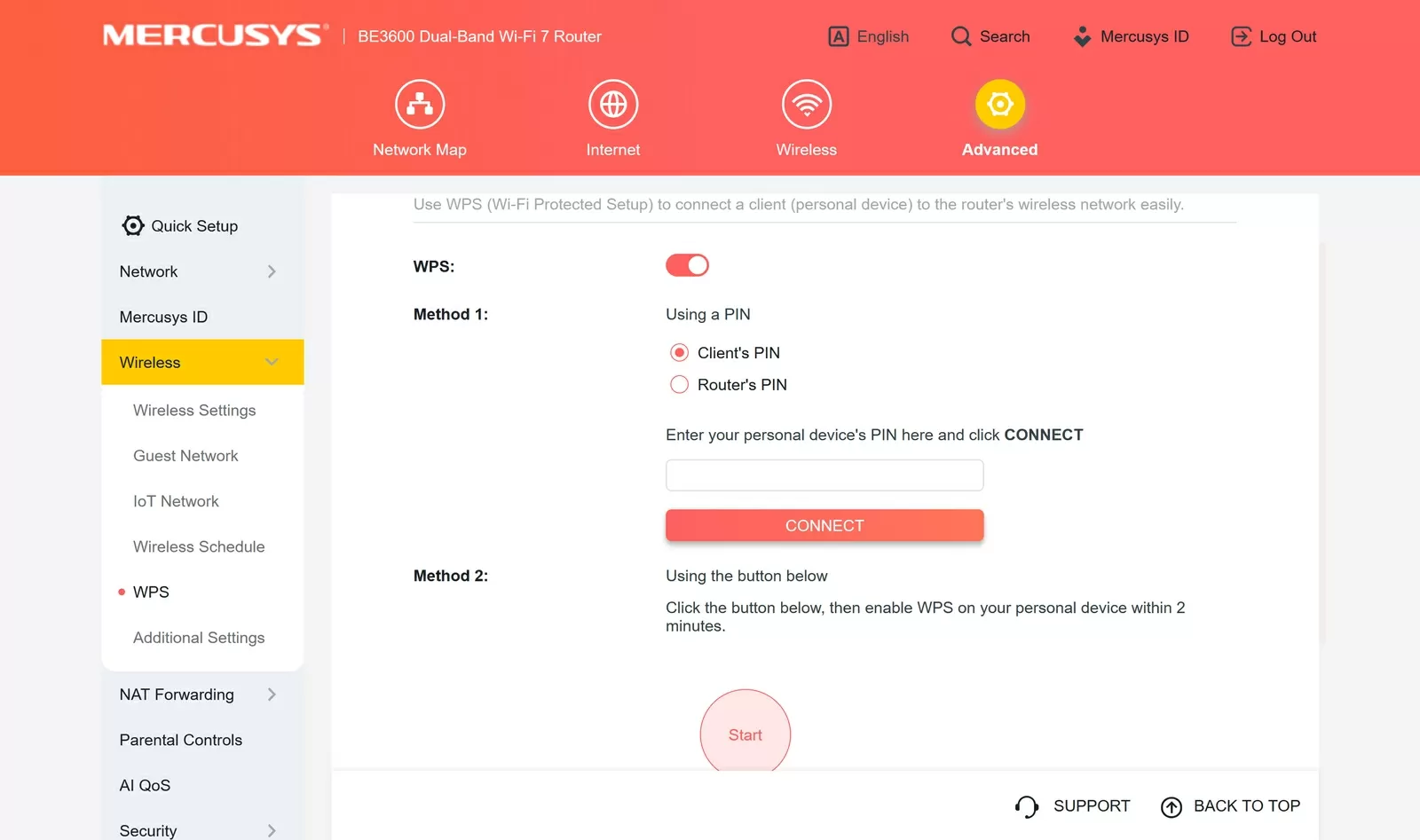
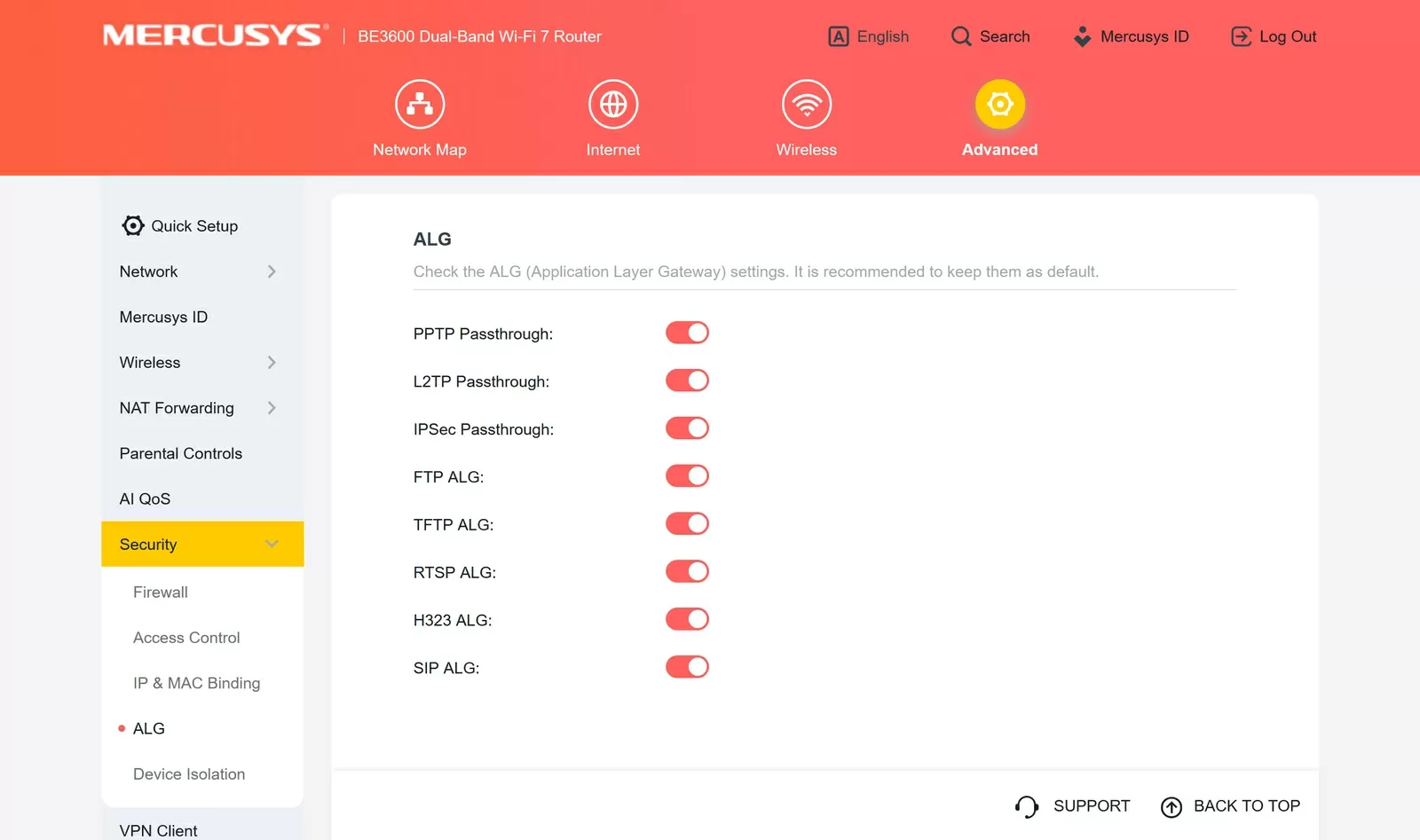
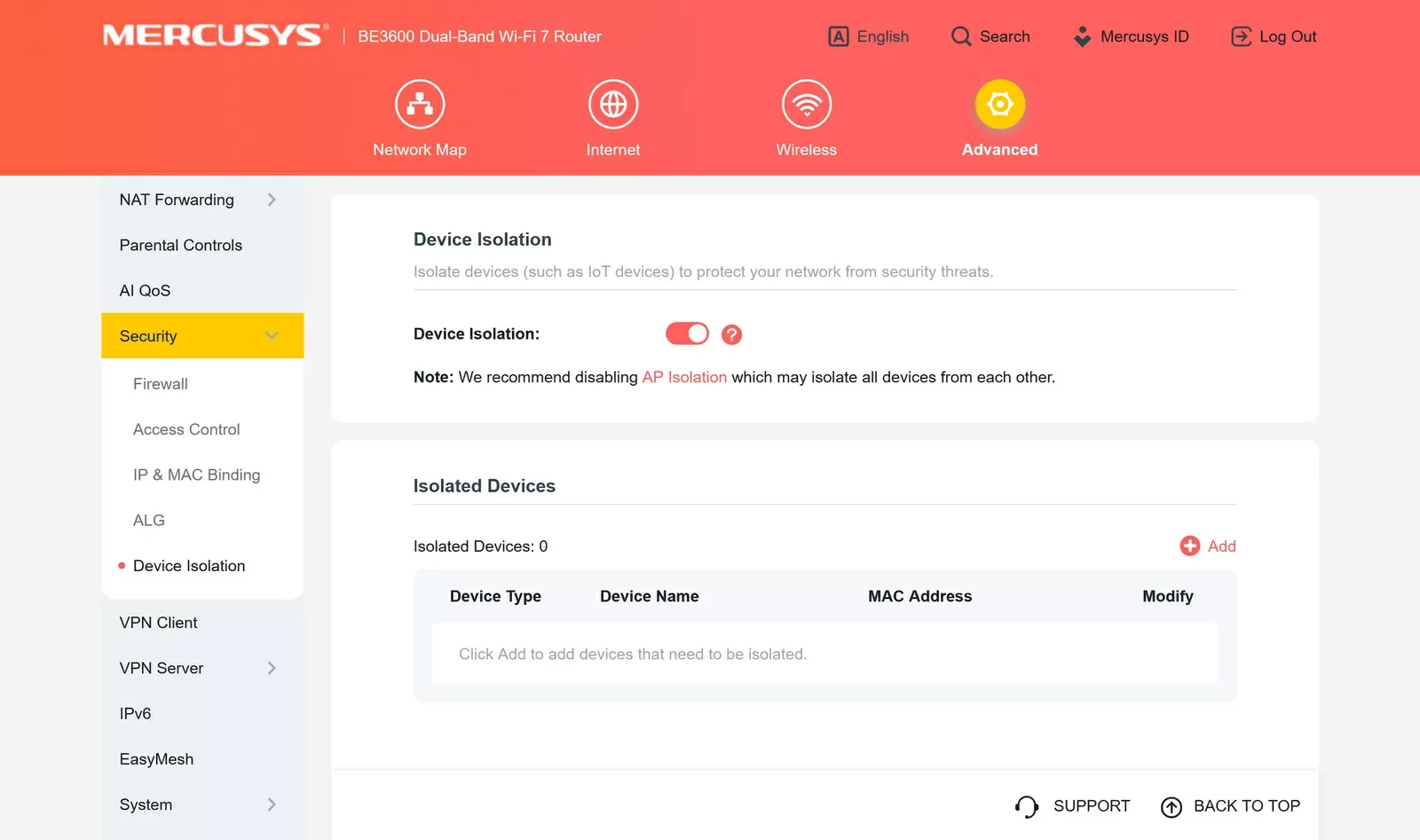
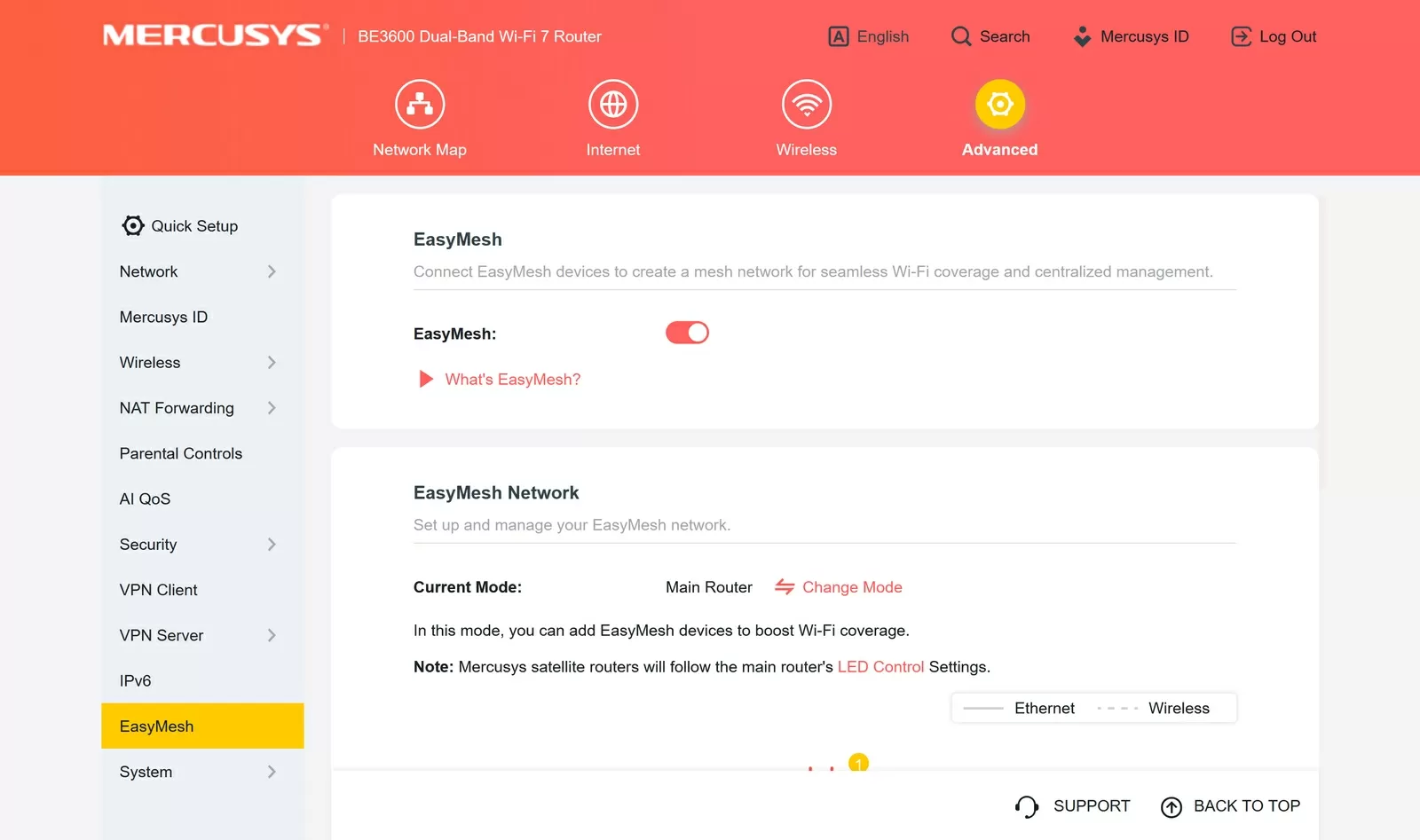
The "Device isolation" section is in Protection → Device isolation. The mechanism is simple: devices in the isolated list are deprived of the ability to initiate connections with other LAN clients, while maintaining access to the Internet. This is exactly what you need for IoT devices: a smart plug should be able to communicate with the manufacturer's cloud, but it should not be able to scan the ports of your NAS or workstation. The recommendation is straightforward: add all IoT devices to the isolated list and leave it like that.
NAT: Port Forwarding and Port Triggering
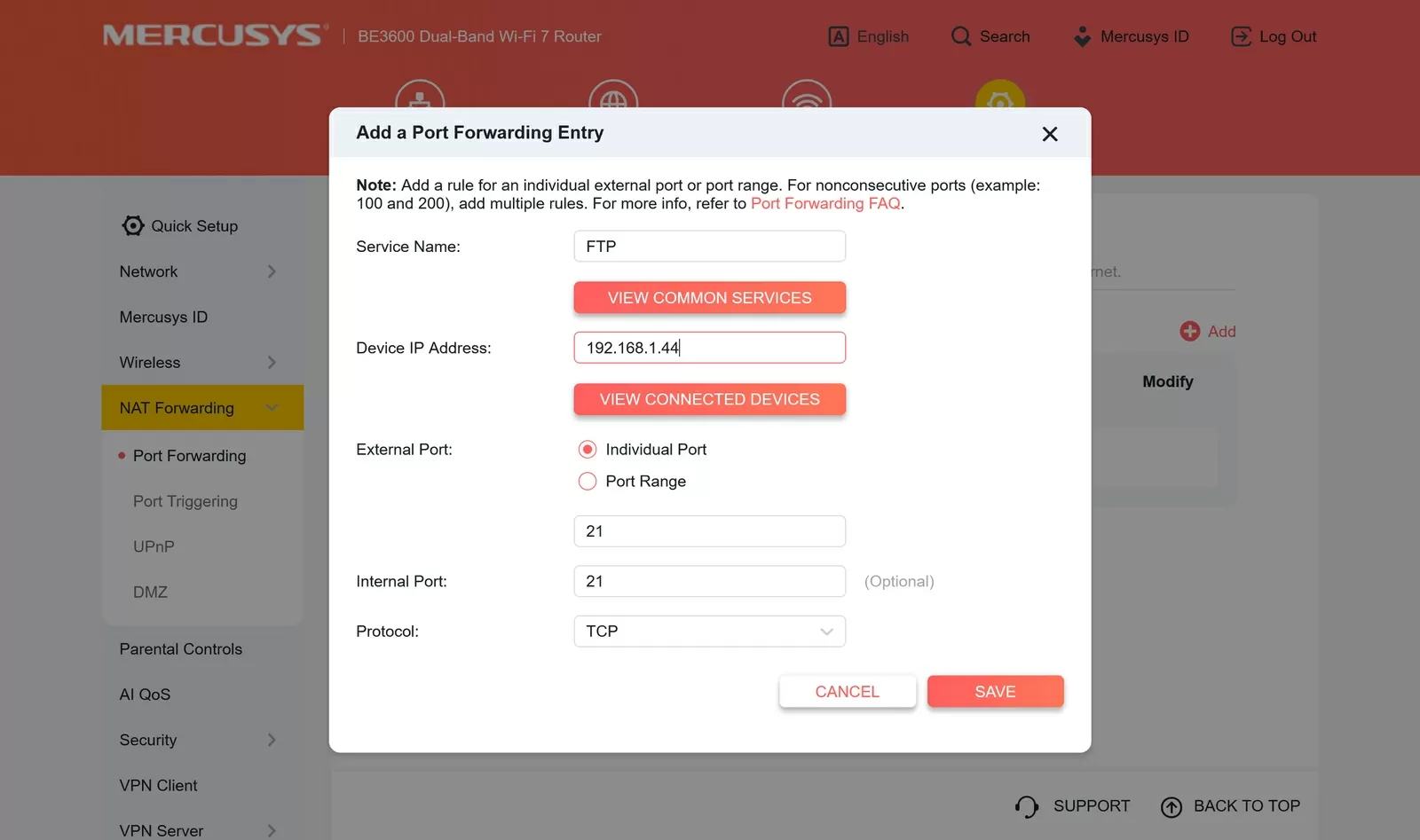
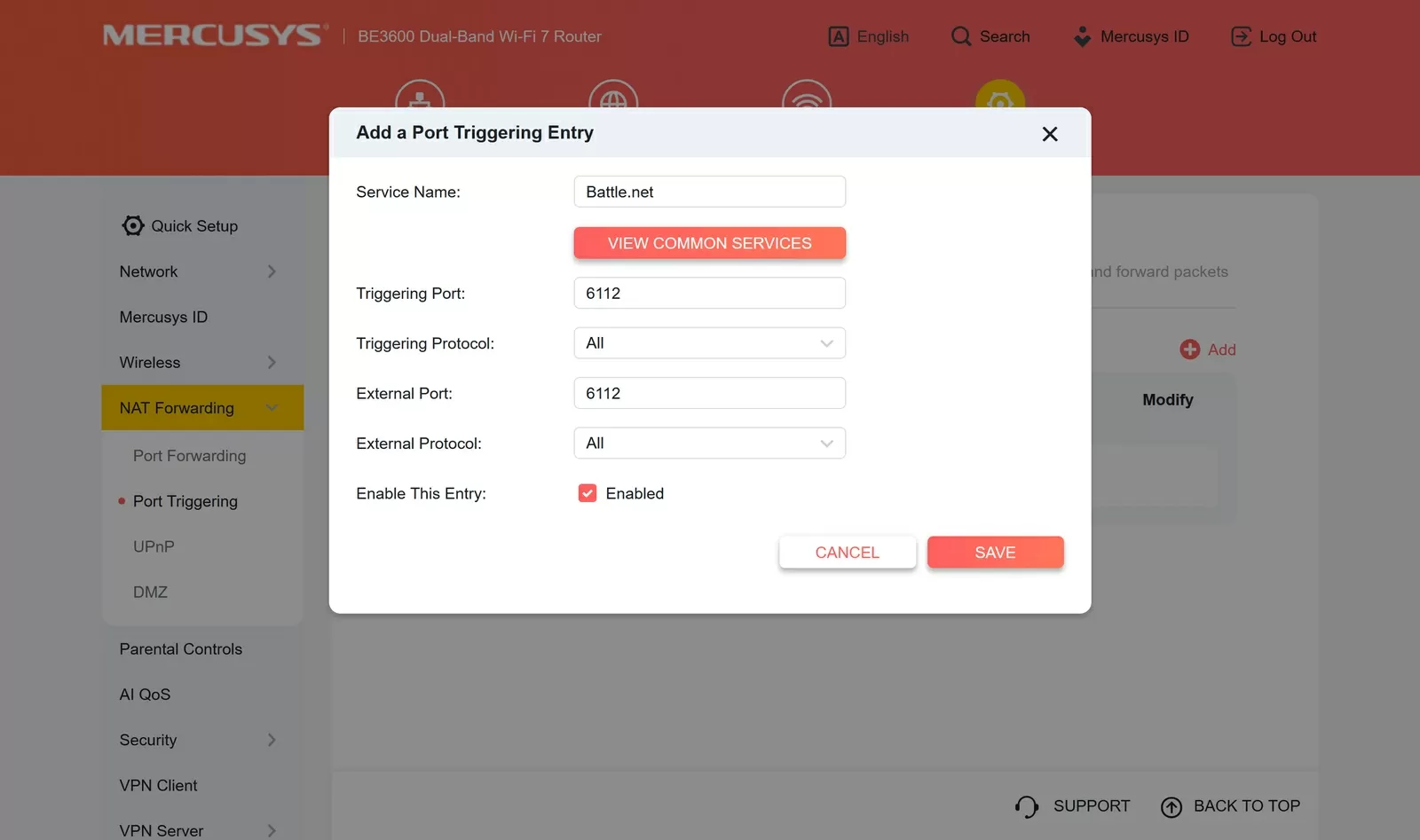
Port Forwarding is a static rule: incoming traffic to a specific external router port is always redirected to a fixed host and port within the network. A typical scenario is to open access to a home server, camera, or SSH from the outside. The rule works all the time, regardless of the client's activity.
Port Triggering works differently: the rule contains two parameters - the trigger port and the external port. As soon as a device opens a connection via a trigger port from inside the network, the router dynamically opens the specified external port and routes incoming traffic to the same device. The port is open exactly as long as the session is active. This is more convenient than static forwarding in situations where several devices use the same application alternately - the router will figure out who to address incoming traffic to now, without having to prescribe a separate rule for each host. The interface additionally offers an "Overview of common services" button with ready-made templates for popular applications
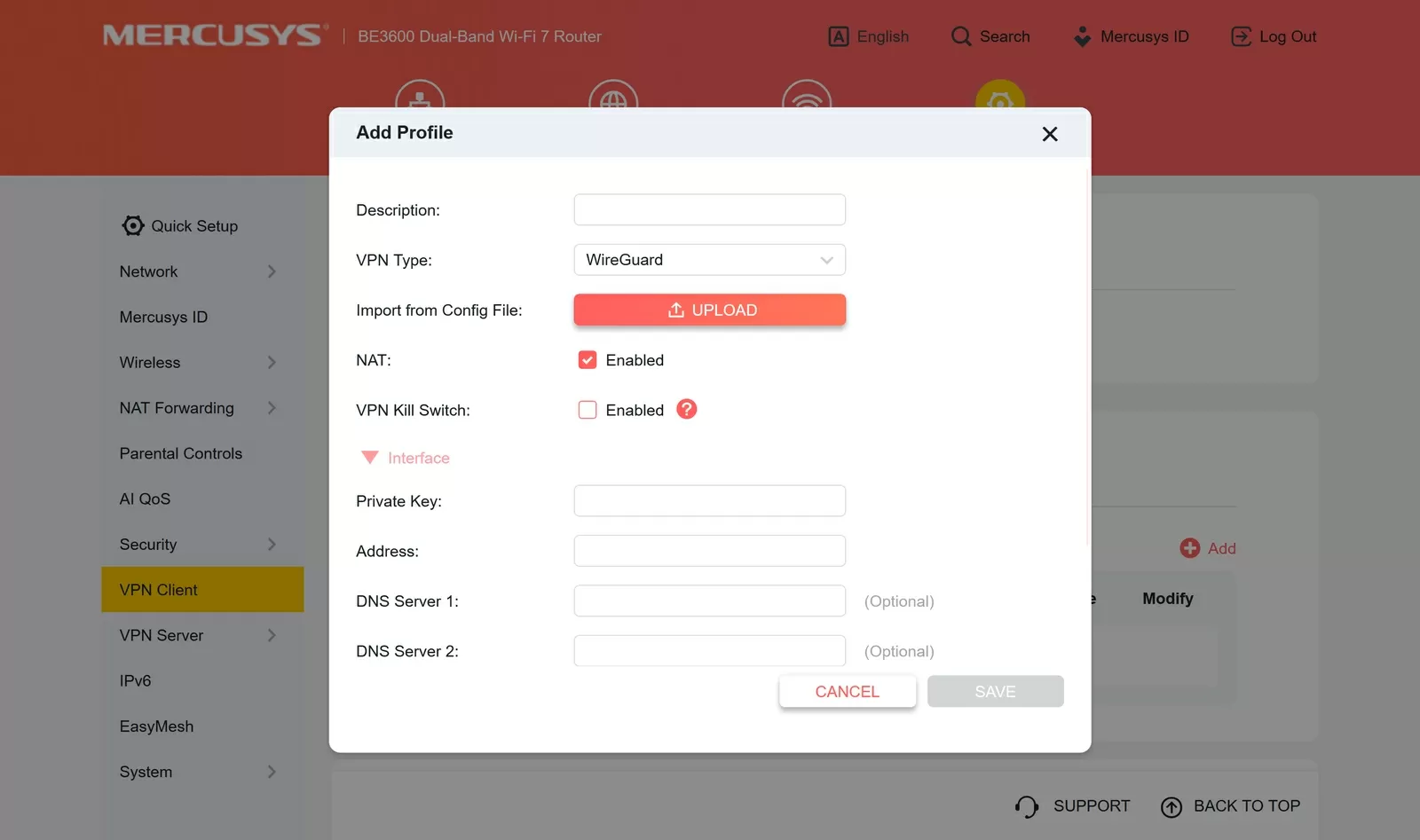
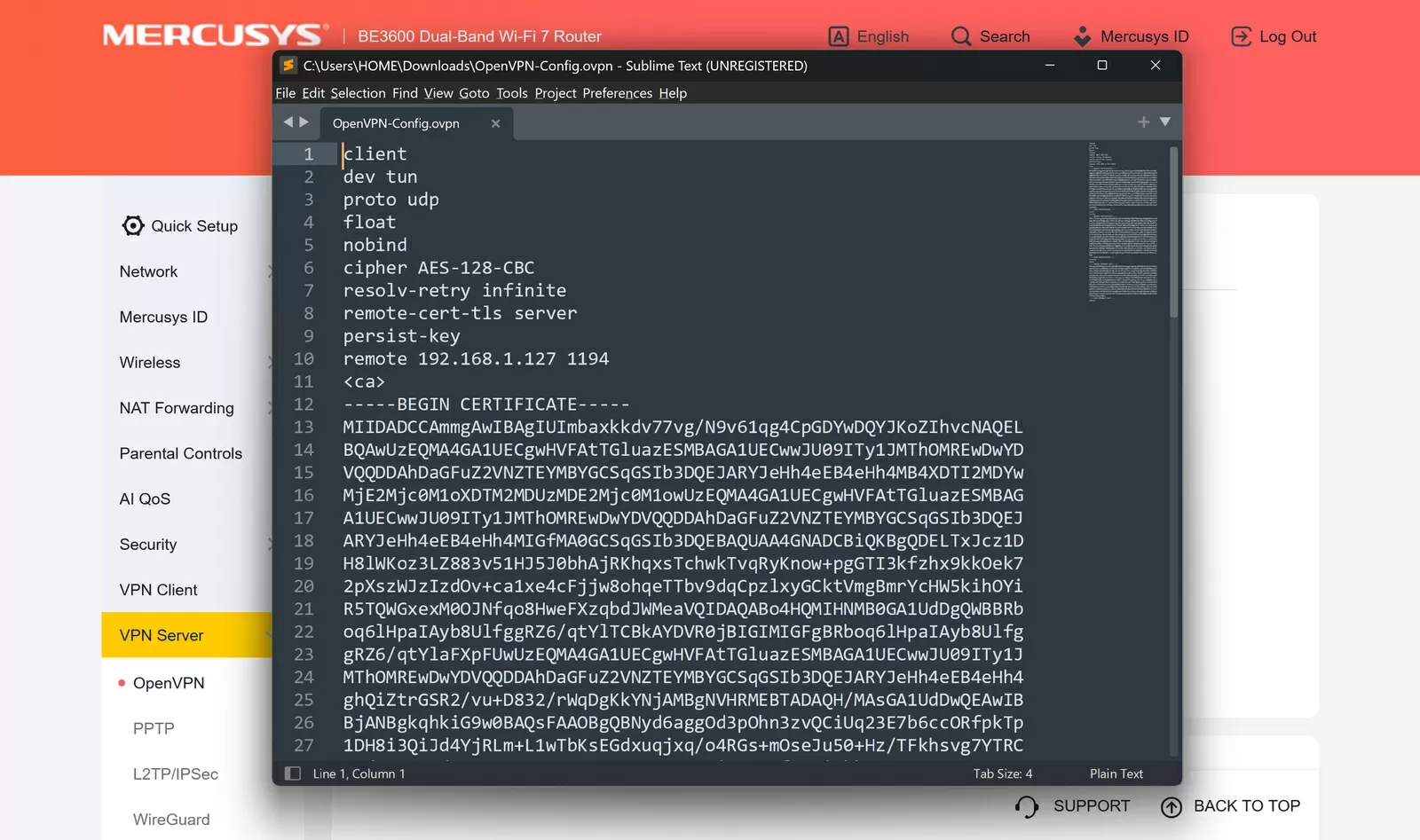
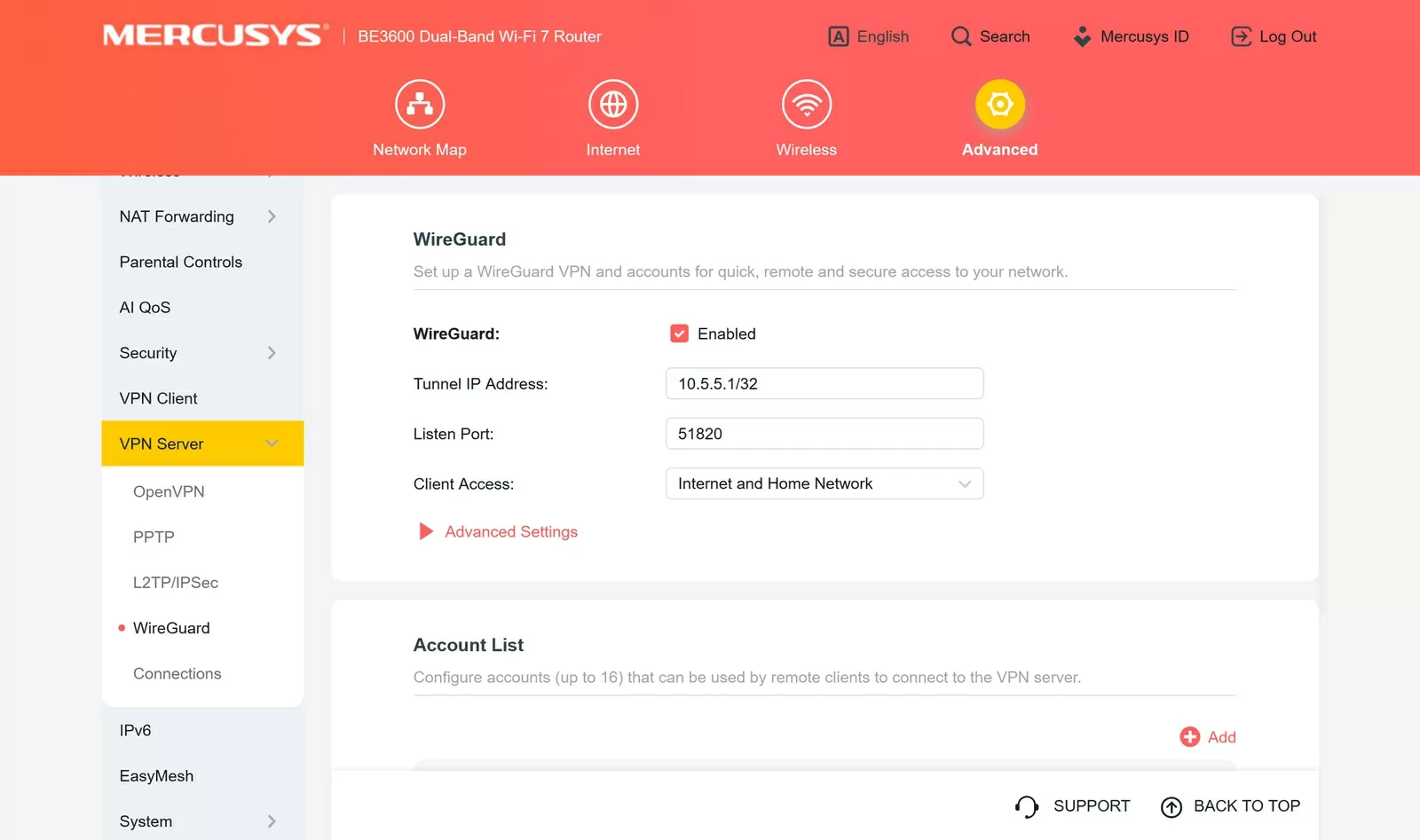
VPN Server: WireGuard
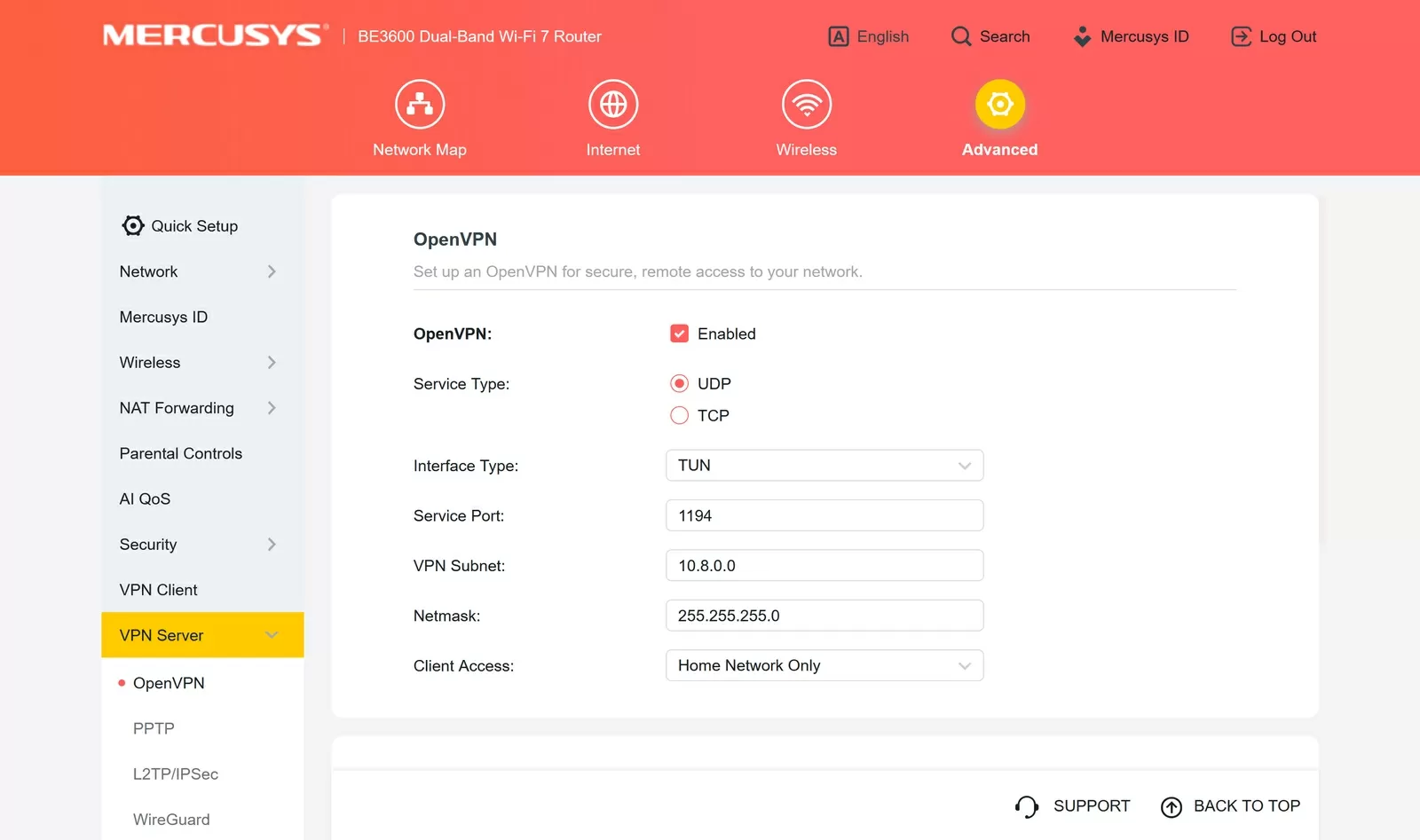
The presence of WireGuard in the list of VPN protocols is a noticeable plus compared to many routers where VPN is limited to outdated PPTP or heavy OpenVPN. WireGuard uses modern cryptography, works in the Linux kernel space and demonstrates significantly lower overhead costs compared to OpenVPN, which is especially important considering the dual-core processor of the router. For remote access to your home network from your phone or laptop, WireGuard on the MR27BE is the most practical choice available.
Parental Controls
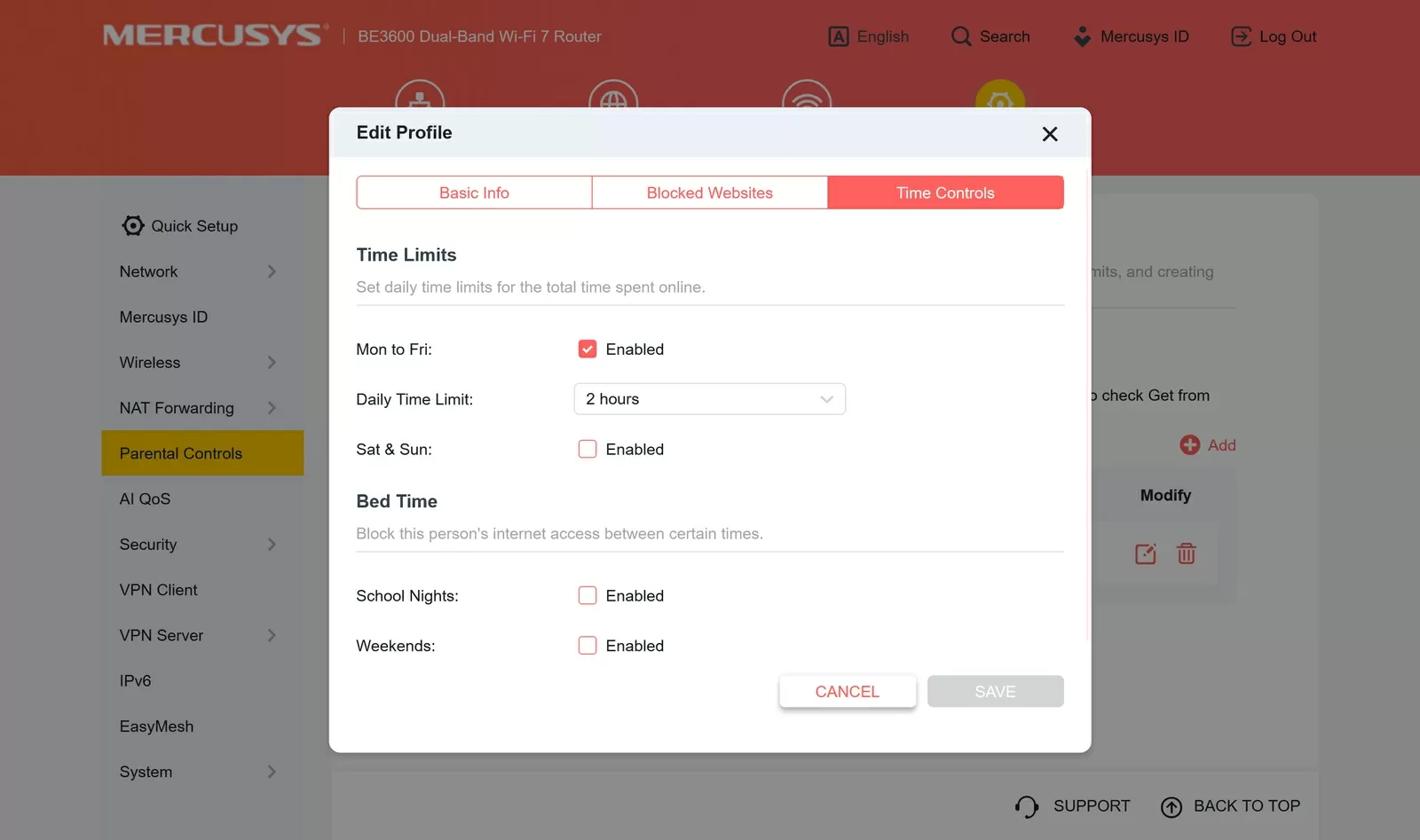
Parental control in the MR27BE is implemented through profiles: a name is specified for each profile, specific network devices are linked, and then two independent blocks of restrictions are configured. The first is Blocked Websites: blocking by a specific URL or by a keyword in an address, which allows you to close an entire category of resources with one rule without having to list them by name. The second block is Time Controls: separate limits on total online time for weekdays and weekends, plus Bed Time - a hard lock on Internet access at set hours separately for school evenings and weekends. The connection is to the device, not to the account, so changing the network name on the child's phone will not bypass the rule — the router identifies the client by the MAC address.
Testing
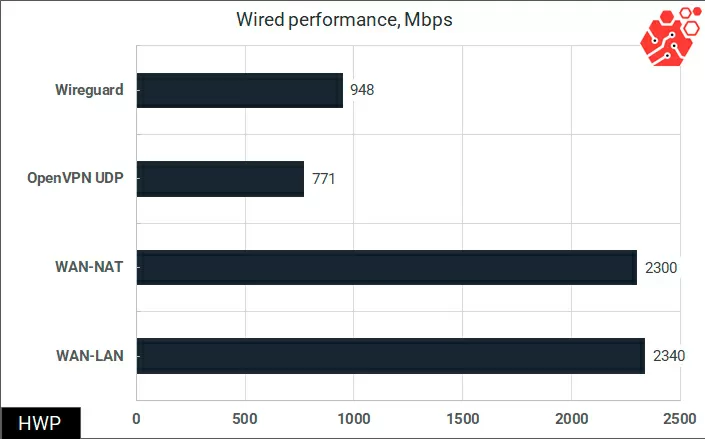
We start with the wired part, where the router fully exploits the potential of 2.5G ports in the LAN-WAN direction, and does NAT practically without reducing speed, which is important when hosting some services like Nextcloud or a backup server behind the router. As for VPN speeds, it demonstrates a steady speed in the region of 1 Gbit/s, a very good indicator for a home model.
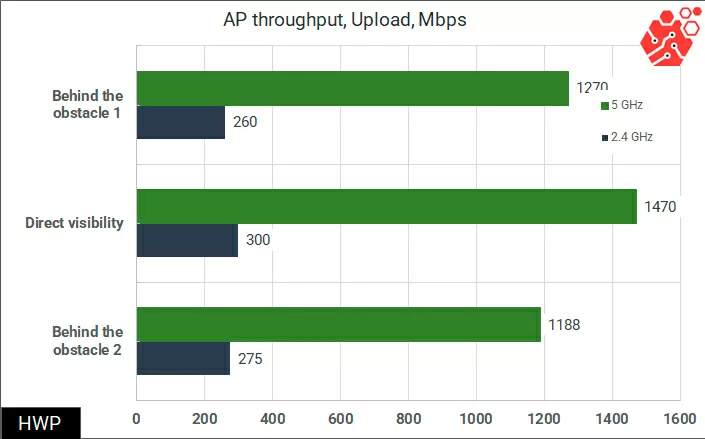
To test the wireless part, I used a Mediatek MT7925 Wi-Fi controller and took measurements in three conditions: in open view, behind a cabinet and behind a drywall partition. I don't have the fastest Wi-Fi controller, so I can't fully unlock the potential of the Wi-Fi part.
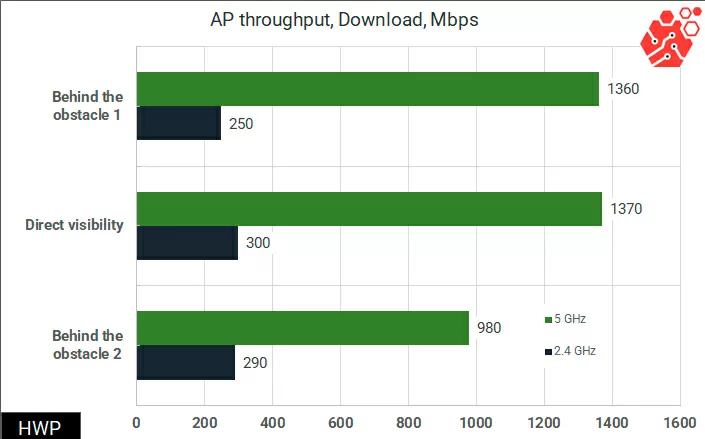
The router shows typical results for its class.
During the testing process, the router was not noticeably heated.
Conclusions
The MR27BE v2 is an entry-level dual-band Wi-Fi 7 router, and its niche should be identified honestly. This is a device that brings key 802.11be technologies to a segment where Wi-Fi 5 routers from the provider's kit used to rule the ball.
What really works together here. Two 2.5G ports remove the wired bottleneck, which would negate the whole point of Wi-Fi 7: it makes no sense to have 2880 Mbps on the air if the NAS or uplink to the switch is limited to gigabit. MLO reduces latency and increases connection stability on Wi-Fi 7—enabled clients - and this is noticeable precisely in scenarios with unstable air, and not just on synthetic tests. EasyMesh with wired backdoor support allows you to close an area that a single point cannot handle without sacrificing a wireless resource for inter-node traffic.
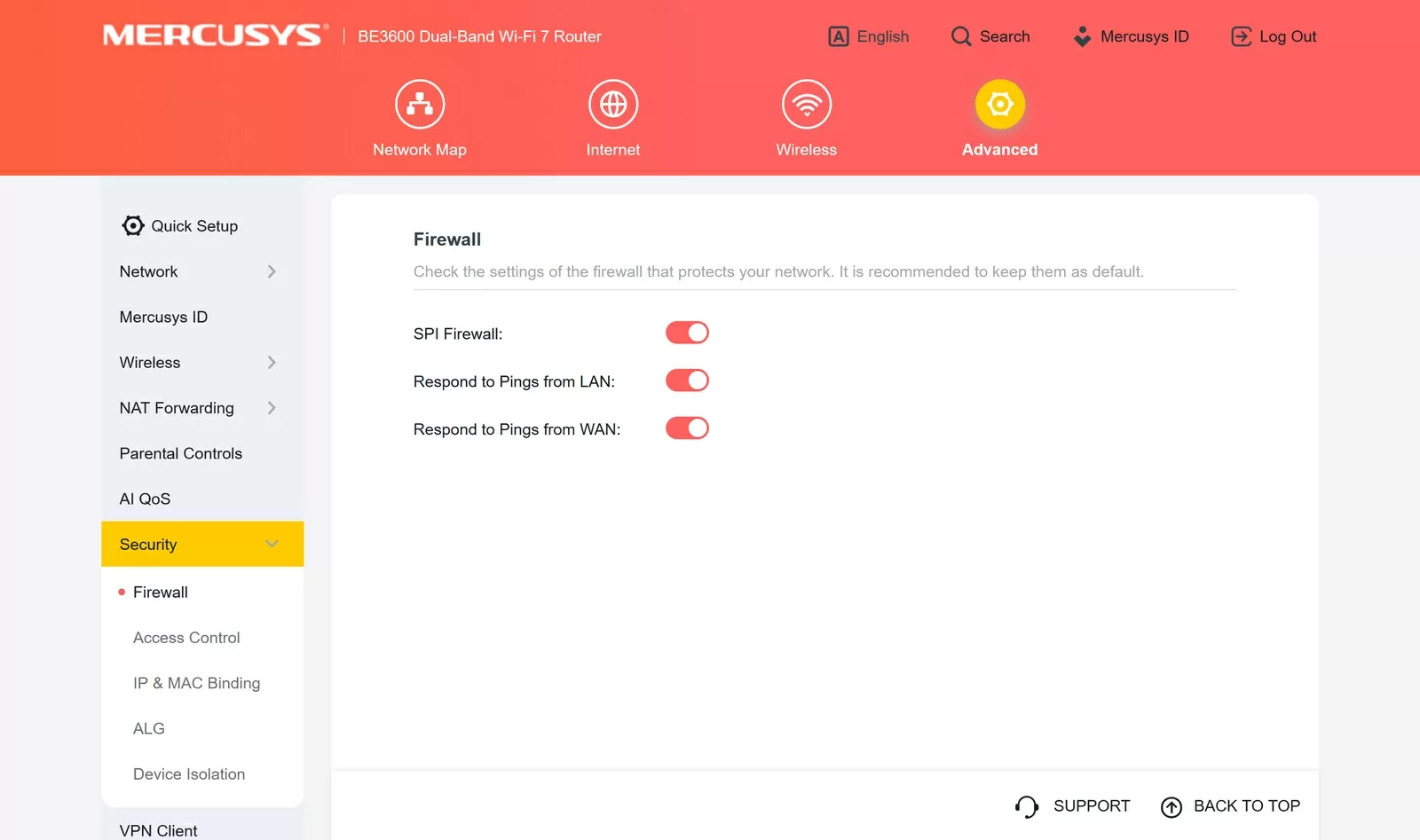
Where is the boundary of possibilities: it's in the flexibility of the wired part. Unfortunately, there is no way to reassign both 2.5G ports to LAN, giving the gigabit to LAN, and there is no VLAN support for home networks and a more or less configurable Firewall.
For whom. The router covers the needs of an apartment or small house with several Wi-Fi 7-enabled clients, a provider's tariff of 500 Mbps or higher, a NAS or a home server with a 2.5G interface, and the desire to build a normal Mesh network without buying a proprietary ecosystem.
Michael Degtyarev (aka LIKE OFF)
23/06.2026